> ## Documentation Index
> Fetch the complete documentation index at: https://docs.depict.ai/llms.txt
> Use this file to discover all available pages before exploring further.

# Product Card Tracking

> How to make sure DPC tracks your product cards correctly

<Note>
  These steps apply to product cards you render yourself. Cards rendered by a
  legacy Depict UI SDK already carry these attributes.
</Note>

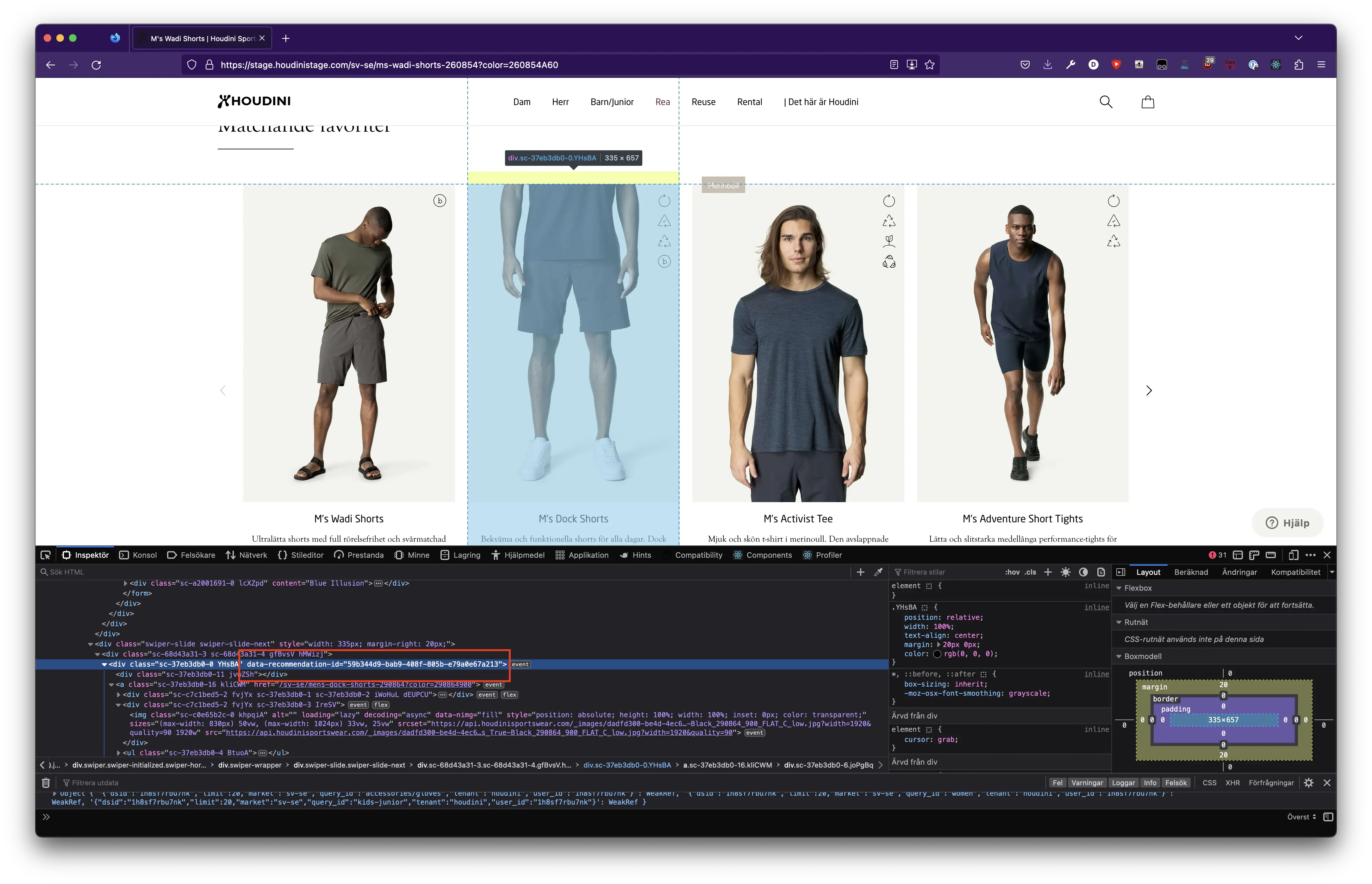
We need to tell DPC about the product cards that you created using Depict data. Also, you need to enable Depict to understand what product this product card is in our internal representation.

In the response from all our API:s there's an id inside each display. You need to add this id to your product card template as a data attribute.

The ID is called different things based on different endpoints

| Endpoint you got product data from | Name of ID in `display` (display = product data provided from API response) | Attribute name to be used |
| - | - | - |
| /v3/listings/\* | product\_listing\_result\_id | data-product-listing-result-id |
| /v2/product-listing | product\_listing\_result\_id | data-product-listing-result-id |
| /v3/recommend/products | recommendation\_id | data-recommendation-id |
| /v2/recommend/\* | recommendation\_id | data-recommendation-id |
| /v3/search/results | search\_result\_id | data-search-result-id |
| /v2/search/results | search\_result\_id | data-search-result-id |
| /v3/search/related | recommendation\_id | data-recommendation-id |
| /v2/search/related | recommendation\_id | data-recommendation-id |

<Note>`/v3/search/suggestions` returns no displays, so there is nothing to tag for it.</Note>

This step enables DPC to track clicks on the product cards — including clicks on [add-to-cart buttons](/api-guide/tracking/add-to-cart) inside them. Cards added later (for example after client-side navigation or infinite scroll) are picked up automatically.

## Examples

One attribute per card, named after the endpoint the display came from (see the table above). The value is the id from that display.

```html Collection or category page (/v3/listings/*) theme={null}
<div data-product-listing-result-id="7ad3110d-7cd6-4352-83da-b93fa1bfe645">
  <!-- Product card -->
</div>
```

```html Recommendations (/v3/recommend/products) theme={null}
<div data-recommendation-id="59b344d9-bab9-488f-805b-e79a0e67a213">
  <!-- Product card -->
</div>
```

```html Search results (/v3/search/*) theme={null}
<div data-search-result-id="c1f0a6d2-3b5e-4a8f-9d21-6e4b7c0a9f13">
  <!-- Product card -->
</div>
```

## Product card impressions

A click data attribute does not prove that impression tracking is active.
When you render cards yourself, add visibility tracking for search, listing
and recommendation cards. Check the events your installed DPC version sends
before you add a second sender.

Send a card impression when the card becomes visible. Send it from the
browser, after rendering. Do not send an impression only because the server
rendered a card in HTML.

A custom sender can use `POST https://api.depict.ai/create-events` with a JSON
array. Each event requires `tenant`, `market`, `type` and at least one identity
field: `session_id`, `user_id` or `dsid`. For an impression, set `type` to
`element_visible`. Include the result ID from the visible display and its
selected variant's `product_id`.

```json theme={null}
[
  {
    "tenant": "MERCHANT_ID",
    "market": "MARKET",
    "session_id": "SESSION_ID",
    "type": "element_visible",
    "search_result_id": "RESULT_ID_FROM_DISPLAY",
    "product_id": "PRODUCT_ID_FROM_SELECTED_VARIANT"
  }
]
```

For listing cards, use `product_listing_result_id` instead of `search_result_id`.
For recommendation cards, use `recommendation_id`. Include exactly the result
ID for the card's source. A custom click sender uses the same endpoint and
identity fields, with `type: "click"` and the card's result ID.

`/create-events` uses `tenant`, although v3 serving requests use `merchant`.
Use the same session ID in serving requests, DPC and custom events. Configure
DPC with [`setSessionId`](/reference/performance-client/performance-client#informing-depict-of-logged-in-users-optional).
The [ID guide](/api-guide/tracking/ids#result-id-lifetime-and-event-validation)
explains the 10-minute result ID lifetime and event validation.

Check the HTTP status when sending events. A `200` response with
`{"message": "ok"}` confirms that the batch passed validation. It does not
prove that result IDs matched. Confirm event arrival and product matching in
the portal's Tracking status tab.


This documentation is built and hosted on [Mintlify](https://mintlify.com), a developer documentation platform.