> ## Documentation Index
> Fetch the complete documentation index at: https://docs.depict.ai/llms.txt
> Use this file to discover all available pages before exploring further.

# Analytics

> The merchant-wide analytics hub: per-area tabs, KPIs, conversion funnel, search insights, recommendation surface metrics, CSV export and analytics API keys.

The Analytics page is the merchant-wide view of how the storefront performs.
It is split into three tabs — **Collections**, **Search** and
**Recommendations** — one per analytics area, and every number covers the
selected period compared with the equally long period immediately before it.

## Limits and behavior

* The Analytics page appears only for stores with analytics enabled. Without
  it, the sidebar item is hidden and a direct link shows "The analytics page
  is not enabled for your account."
* Analytics is enabled per area. The **Search** and **Recommendations** tabs
  render only when their area is enabled; the **Collections** tab is always
  available when the page is.
* The period is selectable: **30d** (default), **7d**, **1d** or **Custom**
  (start and end date). Every metric is compared with the equally long period
  immediately before the selected one; there is no year-over-year comparison
  on this page.
* The period and market selection is shared across pages — the same selection
  follows you between Dashboard, Analytics and Collections.
* Attributed metrics (revenue, add-to-carts, orders) are approximate and
  last-touch, with a 7-day attribution window. Attributed revenue is summed
  across markets without currency conversion.
* Impressions are counted from when impression tracking shipped and cover
  only surfaces that report visibility, so CTR can read high until coverage
  is complete.
* CSV export numbers are store-wide (all markets), and the export modal's
  time range is independent of the page's selection (it defaults to 30d).
* When the metrics backend is unavailable, tiles show empty values rather
  than errors; the corresponding API endpoints return a null body, and the
  CSV export endpoint returns HTTP 503.
* Analytics API keys: at most 50 active keys per store; the key secret is
  shown once at creation and cannot be retrieved again.

## Collections tab

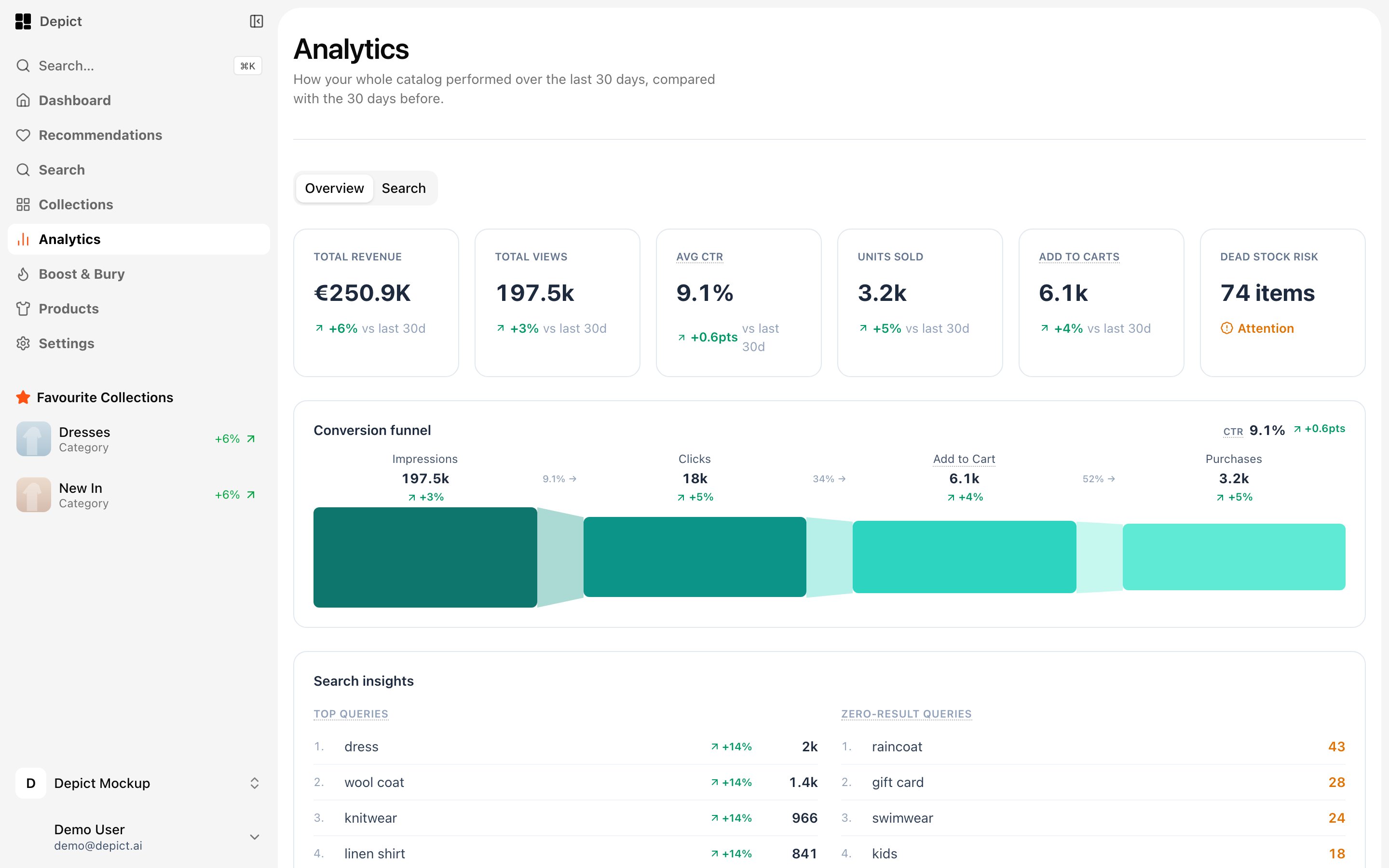
The Collections tab is the merchant-wide overview. It shows:

| KPI tile | Meaning |
| - | - |
| **Total Revenue** | Revenue in the selected period |
| **Total Views** | Product views in the selected period |
| **Avg CTR** | Average click-through rate |
| **Units Sold** | Units sold in the selected period |
| **Add to Carts** | Add-to-cart events in the selected period |
| **Dead Stock Risk** | Products with stock but no sales — the tile opens a searchable, exportable product list across the whole catalog |

Clicking a KPI tile opens a daily-trend view for that metric over the
selected period.

Below the KPI row:

* The merchant-wide **conversion funnel** from impressions through clicks and
  add-to-carts to purchases, with stage-to-stage conversion rates. Add to
  cart appears as a stage once add-to-cart tracking events are flowing.
* **Top collections by revenue**, with page-level traffic.
* **Losing traffic** — the collections losing the most traffic versus the
  previous period.
* A **Pinned vs Auto** rollup with the buckets **Pins healthy** (auto CTR at
  most 5% ahead of the pins), **Check pins** (5–30% ahead), **Unpin advised**
  (30%+ ahead) and **No pins**. See
  [Collection analytics](/headless/features/collection-analytics) for how the
  verdict works.
* A **Benchmark** shortcut for side-by-side collection comparison.

## Search tab

The Search tab covers how shoppers search the store over the selected period:

| KPI tile | Meaning |
| - | - |
| **Search Clicks** | Clicks on search results |
| **Share of All Clicks** | Search-result clicks as a share of all attributed product clicks |
| **Total Searches** | Searches run, across all queries (queries under 3 characters are excluded) |
| **Search CTR** | Clicks on search results divided by search result tiles shown |
| **Zero-Result Rate** | Share of searches that returned no products |
| **Attributed Revenue** | Revenue from purchases last-clicked from a search result within 7 days |
| **Attributed Add-to-Carts** | Add-to-carts last-clicked from a search result within 7 days |
| **Attributed Orders** | Orders containing a product clicked in search results within the previous 7 days |

The tab also shows the search funnel (searches → result clicks → add to
carts → orders) and two query tables: **Most common searches** and
**Most common searches without results**, per market.

## Recommendations tab

The Recommendations tab breaks engagement down **By surface**, ranked by
clicks, with these columns per recommendation surface:

| Column | Meaning |
| - | - |
| **Surface** | The recommendation surface |
| **CTR** | The surface's clicks divided by its impressions |
| **Clicks** | Clicks on the surface's recommended products |
| **Impressions** | Recommended product tiles shown on the surface |
| **AOV** | Attributed revenue divided by attributed orders |
| **Add-to-Cart Rate** | Attributed add-to-carts divided by clicks (per click, so it can exceed 100%) |
| **Purchase Rate** | Attributed orders divided by clicks |

## Export to CSV

The page header has an **Export to CSV** button. The export produces one
file, one row per metric, with the previous period beside each value; numbers
are store-wide (all markets).

1. Click **Export to CSV**.
2. Pick a time range (30d, 7d, 1d or a custom range — independent of the
   page's selection).
3. Select the metric sections to include.
4. Click **Export**.

Result: a CSV file downloads. Sections that could not load fully or have no
data for the period are named in the modal and left incomplete or out of the
file.

| Export section | Contents |
| - | - |
| **Overview KPIs & conversion funnel** | The Collections tab's KPI tiles and funnel |
| **Collection highlights (top & losing traffic)** | Top collections by revenue and collections losing traffic |
| **Search KPIs & funnel** | The Search tab's KPI tiles and funnel |
| **Search queries (top & zero-result)** | The two query tables |
| **Recommendation surfaces** | The per-surface breakdown |

## Analytics API keys

Analytics API keys give a merchant's own systems read-only access to the
analytics report endpoints without a browser session — for example a
scheduled weekly CSV pull. A key is a string starting with `dpk_`, sent in
the `X-API-Key` request header. It is scoped to one store and works only on
the report endpoints listed below; it cannot modify anything.

To create a key:

1. Open **Settings**, then **General**.
2. In the **API keys** card, enter a key name.
3. Click **Create key**.

Result: the key secret is displayed once, with the notice "Copy this secret
now — it won't be shown again." The list below shows each key's name, prefix
and creation date.

<Warning>
  The secret is shown exactly once. Depict stores only a SHA-256 hash and the
  first 8 characters; a lost secret cannot be recovered — revoke the key and
  create a new one.
</Warning>

Key management (create, list, revoke) requires a portal login; keys cannot
manage other keys. A store can have at most 50 active keys — creating more
returns HTTP 409. Revoking a key takes effect immediately.

## Analytics API endpoints

The following endpoints accept either a portal JWT or a merchant API key via
the `X-API-Key` header. All paths are under
`/api/v1/merchants/{merchant_id}`.

| Endpoint | Description |
| - | - |
| `GET /analytics/overview` | Merchant-wide analytics for the hub. Optional `start_timestamp` / `end_timestamp` (Unix seconds; only the UTC date is used); defaults to the last 30 days vs the previous 30. Returns a null body when the metrics backend is unavailable. |
| `GET /analytics/periods` | The week and month periods available for comparison, each with `has_snapshot`. |
| `GET /analytics/compare` | Collection-level period-A vs period-B comparison. Query: `period_type` (`week` or `month`), `period_a`, `period_b` (ISO dates — period starts), optional `collection_ids`, `market_group_id`, `market`. |
| `GET /collections/{collection_id}/analytics/compare` | Product-level comparison inside one collection: position changes, per-product metric deltas and toplists between two periods. |
| `POST /analytics/export` | CSV export of a period comparison. Streams a `text/csv` attachment; returns HTTP 503 when the metrics backend is unavailable. |

The export request body:

| Field | Values | Default |
| - | - | - |
| `period_type` | `week` or `month` | required |
| `period_a_start` | ISO date — start of the newer period | required |
| `period_b_start` | ISO date — start of the comparison period | the period immediately before `period_a_start` |
| `collection_ids` | List of collection UUIDs to include | none |
| `all_collections` | `true` to include every collection | `false` |
| `level` | `collection` (one row per collection) or `product` (one row per product; requires exactly one `collection_ids` entry, otherwise HTTP 400) | `collection` |
| `market_group_id` | Market group to scope by | the default market group |
| `market` | Single market to scope by | none |

Comparison responses carry period metadata with `source: "snapshot"` or
`"live"`: periods are served from stored snapshots when one exists and
computed from live data otherwise. Live-sourced stock and position figures
reflect today, not the historical period.

## Where the numbers come from

Every metric on this page uses the same backend aggregation as the
per-collection metrics — the analytics hub and the collection pages agree.
Metric definitions are documented in the tooltips next to each label in the
portal.


This documentation is built and hosted on [Mintlify](https://mintlify.com), a developer documentation platform.