> ## Documentation Index
> Fetch the complete documentation index at: https://docs.depict.ai/llms.txt
> Use this file to discover all available pages before exploring further.
# Collections
> Curate every collection with pinned and auto-sorted products, bulk actions, content blocks and per-market settings.
The Collections area is where you merchandise your storefront's listing pages.
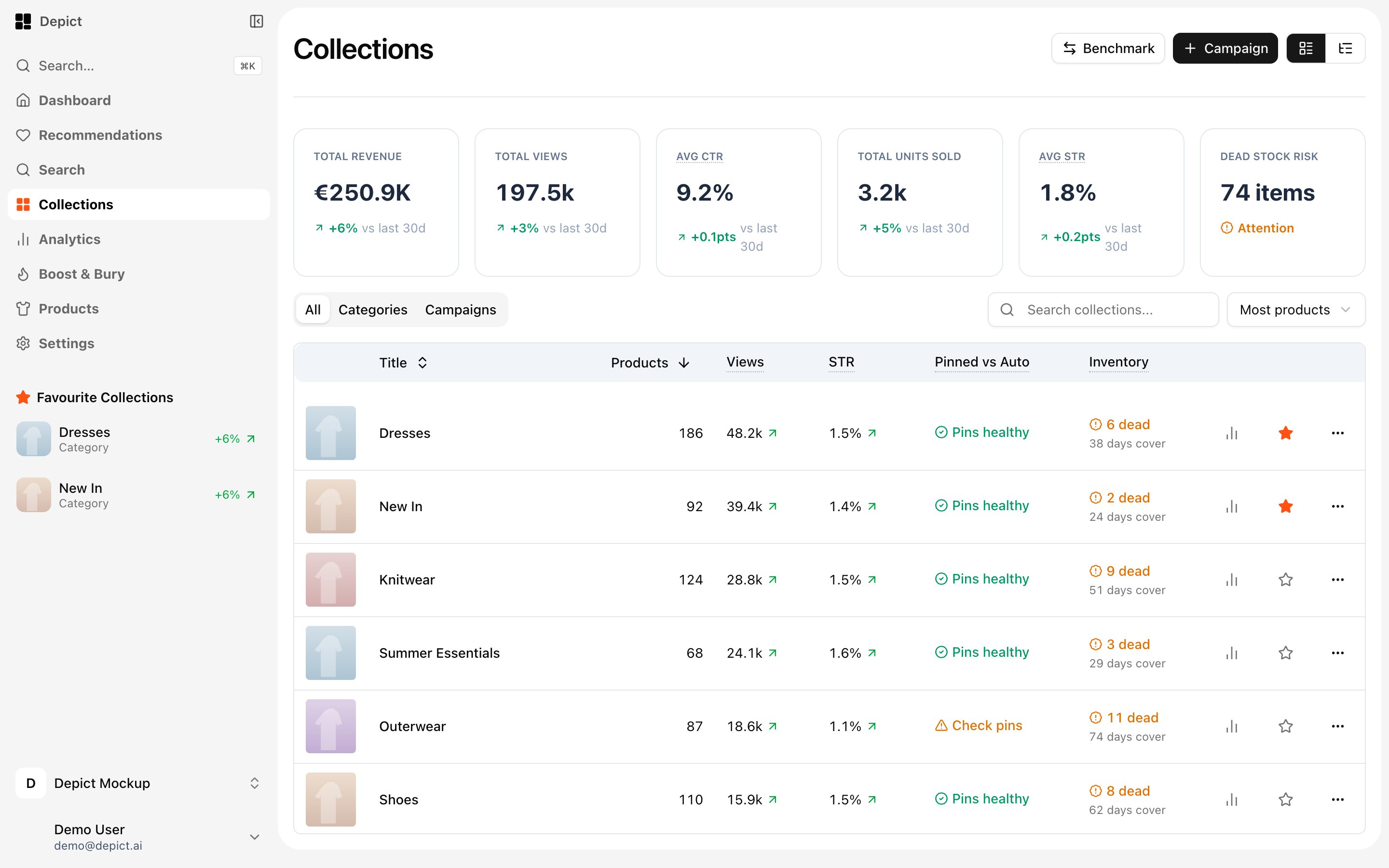 ## Collections list
* Browse collections as a **table or tree** (toggle in the header).
* Filter by type — All, Categories, Smart Picks, Brands, Campaigns, Styles,
Looks — and search by title.
* Sort by title, last updated or product count.
* The table also shows performance columns (views, CTR, revenue, inventory
health, pinned-vs-auto status) — see
[Collection analytics](/headless/features/collection-analytics) for what
they mean.
* **Create collection** in the header creates a new campaign collection.
* Mark collections as **favourites** to pin them to the sidebar.
## Collection editor
Products in a collection are split into two sections:
* **Pinned** — products you've fixed to a position. Drag to reorder.
* **Auto-sorted** — everything else, ranked automatically by performance.
You can pin/unpin products, hide/unhide them, and remove them from the
collection. Fully managed collections (for example automatic categories) may
restrict curation — the editor tells you when products can't be edited.
### Bulk actions
Select multiple products (Escape clears the selection) and apply an action to
all of them at once: pin, pin to top, pin to bottom, pin to an exact position,
unpin, hide, unhide or remove.
### Adding products and rules
The **Add products** modal adds products as (unpinned) collection members.
Merchants with the corresponding permission can also add filter rules that
define collection membership dynamically.
### Content blocks
Interleave content cards with the product grid — add, edit, move and delete
them directly in the editor.
### Collection settings
The settings modal has three tabs:
* **General** — localized titles per language and, for campaigns, the URL
slug. The collection ID and type are copyable here.
* **Ranking** — choose the ranking flavour for the auto-sorted section: Top,
Similar or Complementary.
* **Visibility** — toggles for showing the collection in filters, breadcrumbs,
quicklinks and search suggestions.
Collections can be deleted from this modal (with a two-step confirmation).
### Working across markets
Scope the editor by market or market group; an unsaved-changes guard prevents
you from losing edits when switching. A storefront preview link and a
mobile/desktop grid preview show what shoppers will see.
Changes are staged until you hit **Save** — a persistent bar lets you save or
revert, and the portal warns you before navigating away with unsaved changes.
## Collections list
* Browse collections as a **table or tree** (toggle in the header).
* Filter by type — All, Categories, Smart Picks, Brands, Campaigns, Styles,
Looks — and search by title.
* Sort by title, last updated or product count.
* The table also shows performance columns (views, CTR, revenue, inventory
health, pinned-vs-auto status) — see
[Collection analytics](/headless/features/collection-analytics) for what
they mean.
* **Create collection** in the header creates a new campaign collection.
* Mark collections as **favourites** to pin them to the sidebar.
## Collection editor
Products in a collection are split into two sections:
* **Pinned** — products you've fixed to a position. Drag to reorder.
* **Auto-sorted** — everything else, ranked automatically by performance.
You can pin/unpin products, hide/unhide them, and remove them from the
collection. Fully managed collections (for example automatic categories) may
restrict curation — the editor tells you when products can't be edited.
### Bulk actions
Select multiple products (Escape clears the selection) and apply an action to
all of them at once: pin, pin to top, pin to bottom, pin to an exact position,
unpin, hide, unhide or remove.
### Adding products and rules
The **Add products** modal adds products as (unpinned) collection members.
Merchants with the corresponding permission can also add filter rules that
define collection membership dynamically.
### Content blocks
Interleave content cards with the product grid — add, edit, move and delete
them directly in the editor.
### Collection settings
The settings modal has three tabs:
* **General** — localized titles per language and, for campaigns, the URL
slug. The collection ID and type are copyable here.
* **Ranking** — choose the ranking flavour for the auto-sorted section: Top,
Similar or Complementary.
* **Visibility** — toggles for showing the collection in filters, breadcrumbs,
quicklinks and search suggestions.
Collections can be deleted from this modal (with a two-step confirmation).
### Working across markets
Scope the editor by market or market group; an unsaved-changes guard prevents
you from losing edits when switching. A storefront preview link and a
mobile/desktop grid preview show what shoppers will see.
Changes are staged until you hit **Save** — a persistent bar lets you save or
revert, and the portal warns you before navigating away with unsaved changes.