> ## Documentation Index
> Fetch the complete documentation index at: https://docs.depict.ai/llms.txt
> Use this file to discover all available pages before exploring further.
# Search
> Understand what customers search for and steer the results with synonyms and search content.
The Search page manages the search experience Depict serves on your
storefront.
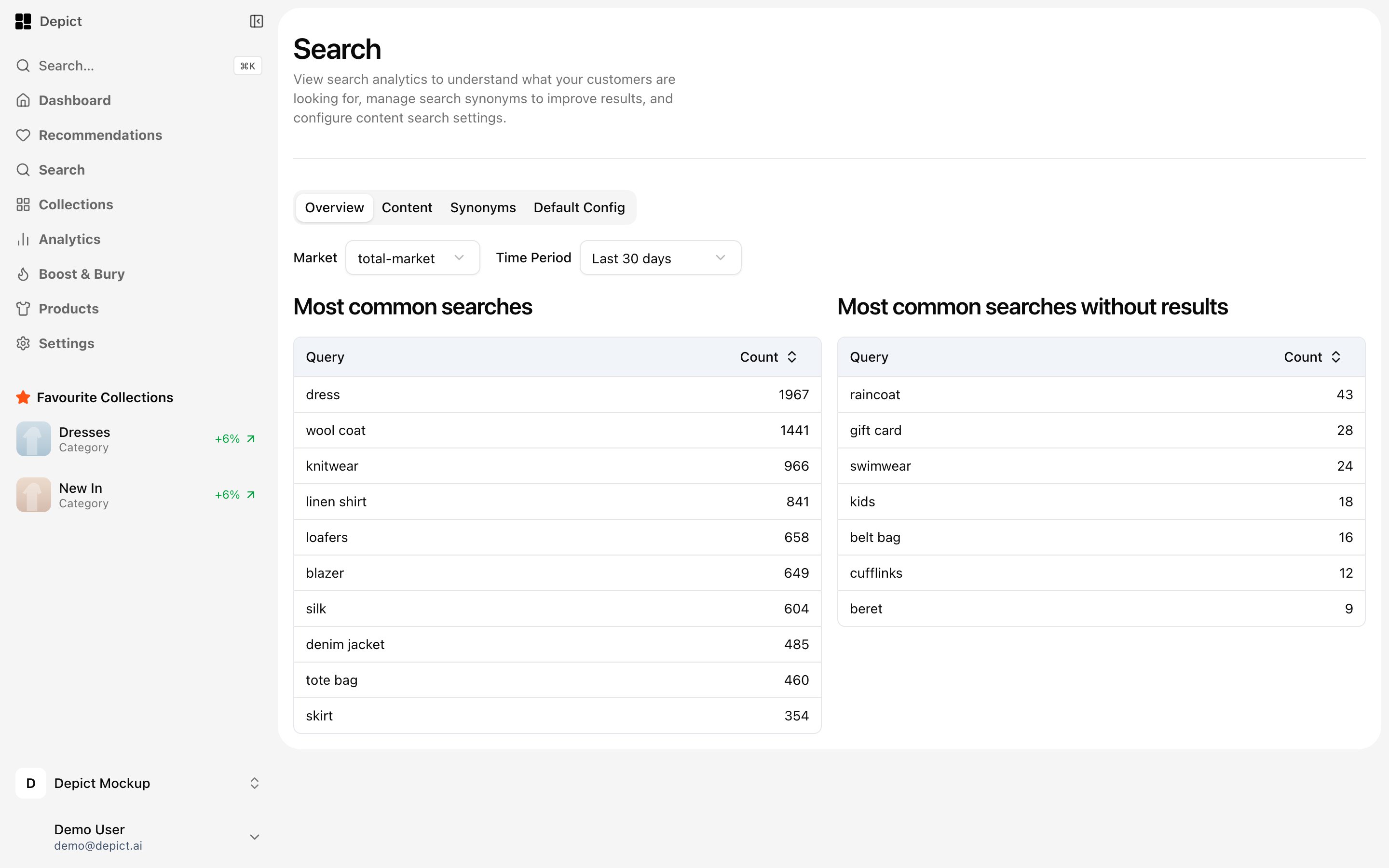 ## Query insights
Two tables show search demand, filterable by market and time period (7, 30,
90 or 365 days):
* **Most common searches** — your top queries with counts and trends.
* **Most common searches without results** — queries that returned nothing.
These are the fastest wins: every zero-result query is a customer telling
you which word they use for something you (probably) sell.
## Synonyms
Teach the search engine your customers' vocabulary, per language:
* View all synonym groups for a selected locale.
* Add a new synonym group ("trousers" = "pants" = "byxor").
* Edit or delete existing groups.
Zero-result queries are the best source of synonym candidates.
## Search content
Add non-product content to search results, per language — for example size
guides, service pages or campaign landing pages. You manage entries with
keywords; content appears when a customer's query matches.
## Query insights
Two tables show search demand, filterable by market and time period (7, 30,
90 or 365 days):
* **Most common searches** — your top queries with counts and trends.
* **Most common searches without results** — queries that returned nothing.
These are the fastest wins: every zero-result query is a customer telling
you which word they use for something you (probably) sell.
## Synonyms
Teach the search engine your customers' vocabulary, per language:
* View all synonym groups for a selected locale.
* Add a new synonym group ("trousers" = "pants" = "byxor").
* Edit or delete existing groups.
Zero-result queries are the best source of synonym candidates.
## Search content
Add non-product content to search results, per language — for example size
guides, service pages or campaign landing pages. You manage entries with
keywords; content appears when a customer's query matches.