> ## Documentation Index
> Fetch the complete documentation index at: https://docs.depict.ai/llms.txt
> Use this file to discover all available pages before exploring further.
# Adding a Collection Page block
The Depict Collection Page block is the block that renders the collection page. Below we'll show you how to add the block to your default collection template.
You can also add it to any other collection template you have as well as to any other pages where you'd like to display a collection - just make sure to configure a collection handle in the block settings if the block is used on a page that is not a collection page.
Select the collection template in the theme editor.
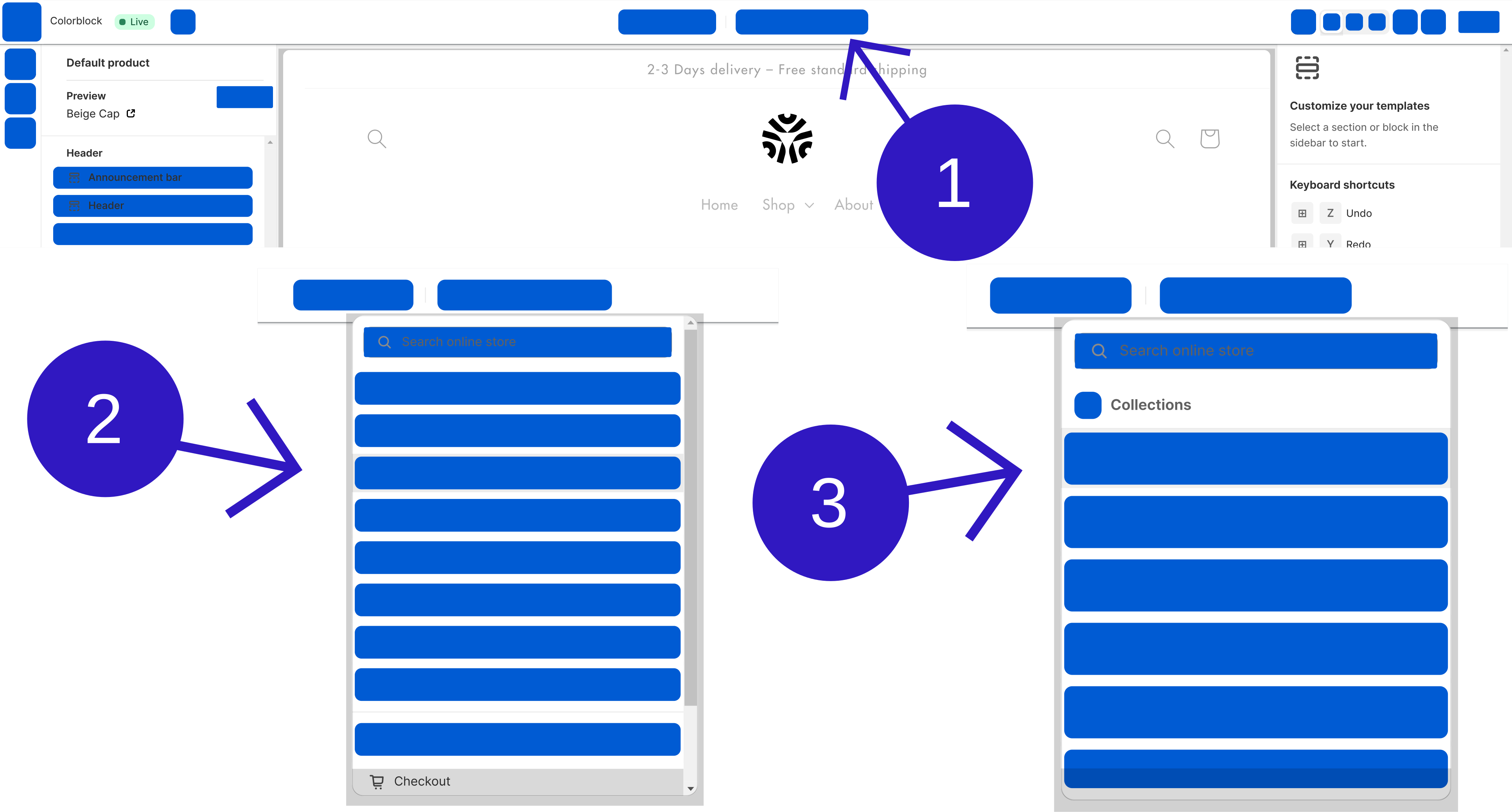 {
// In prod, they have some zoom thing which breaks aspectRatio, work around that. Unfortunately this is not in the SSR'd output so there's still some CLS.
const direct_parent = element?.parentElement;
if(direct_parent?.matches?.("[data-rmiz-content]")) {
Object.assign(direct_parent.style, {
width: "100%",
display: "flex",
justifyContent: "center",
alignItems: "center"
})
}
const parents_parent = direct_parent?.parentElement;
if(parents_parent?.matches?.("[aria-owns^='rmiz-modal']")) {
parents_parent.style.width = "100%";
}
}}
/>
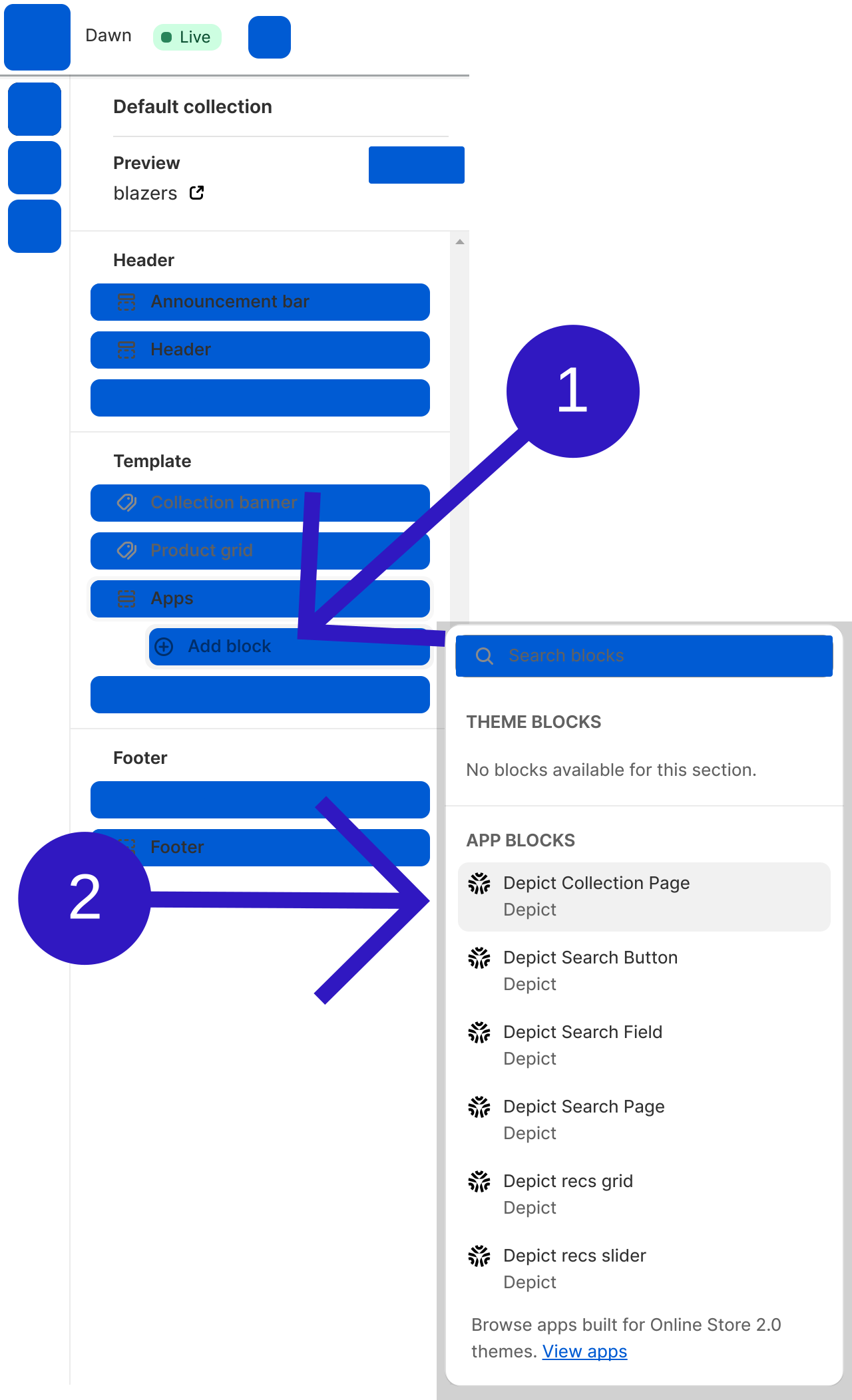
Add the Depict Collection Page block.
You might also want to hide your old collection block in this step.
{
// In prod, they have some zoom thing which breaks aspectRatio, work around that. Unfortunately this is not in the SSR'd output so there's still some CLS.
const direct_parent = element?.parentElement;
if(direct_parent?.matches?.("[data-rmiz-content]")) {
Object.assign(direct_parent.style, {
width: "100%",
display: "flex",
justifyContent: "center",
alignItems: "center"
})
}
const parents_parent = direct_parent?.parentElement;
if(parents_parent?.matches?.("[aria-owns^='rmiz-modal']")) {
parents_parent.style.width = "100%";
}
}}
/>
Add the Depict Collection Page block.
You might also want to hide your old collection block in this step.
 {
// In prod, they have some zoom thing which breaks aspectRatio, work around that. Unfortunately this is not in the SSR'd output so there's still some CLS.
const direct_parent = element?.parentElement;
if(direct_parent?.matches?.("[data-rmiz-content]")) {
Object.assign(direct_parent.style, {
width: "100%",
display: "flex",
justifyContent: "center",
alignItems: "center"
})
}
const parents_parent = direct_parent?.parentElement;
if(parents_parent?.matches?.("[aria-owns^='rmiz-modal']")) {
parents_parent.style.width = "100%";
}
}}
/>
Change the configurable options as you like and hit save
{
// In prod, they have some zoom thing which breaks aspectRatio, work around that. Unfortunately this is not in the SSR'd output so there's still some CLS.
const direct_parent = element?.parentElement;
if(direct_parent?.matches?.("[data-rmiz-content]")) {
Object.assign(direct_parent.style, {
width: "100%",
display: "flex",
justifyContent: "center",
alignItems: "center"
})
}
const parents_parent = direct_parent?.parentElement;
if(parents_parent?.matches?.("[aria-owns^='rmiz-modal']")) {
parents_parent.style.width = "100%";
}
}}
/>
Change the configurable options as you like and hit save
 {
// In prod, they have some zoom thing which breaks aspectRatio, work around that. Unfortunately this is not in the SSR'd output so there's still some CLS.
const direct_parent = element?.parentElement;
if(direct_parent?.matches?.("[data-rmiz-content]")) {
Object.assign(direct_parent.style, {
width: "100%",
display: "flex",
justifyContent: "center",
alignItems: "center"
})
}
const parents_parent = direct_parent?.parentElement;
if(parents_parent?.matches?.("[aria-owns^='rmiz-modal']")) {
parents_parent.style.width = "100%";
}
}}
/>
Now that you have added the Depict product listing pages to your site, we recommend removing all traces (including JavaScript for sorting and filtering) of your old collection blocks, to improve pagespeed.
{
// In prod, they have some zoom thing which breaks aspectRatio, work around that. Unfortunately this is not in the SSR'd output so there's still some CLS.
const direct_parent = element?.parentElement;
if(direct_parent?.matches?.("[data-rmiz-content]")) {
Object.assign(direct_parent.style, {
width: "100%",
display: "flex",
justifyContent: "center",
alignItems: "center"
})
}
const parents_parent = direct_parent?.parentElement;
if(parents_parent?.matches?.("[aria-owns^='rmiz-modal']")) {
parents_parent.style.width = "100%";
}
}}
/>
Now that you have added the Depict product listing pages to your site, we recommend removing all traces (including JavaScript for sorting and filtering) of your old collection blocks, to improve pagespeed.