> ## Documentation Index
> Fetch the complete documentation index at: https://docs.depict.ai/llms.txt
> Use this file to discover all available pages before exploring further.

# Preparing your theme - <body>

<Warning>
  This page does not apply to installs made in 2025 or later of the Depict Shopify apps
</Warning>

<Warning>If you update your theme to a never version, you might need to repeat this step</Warning>

What you will add inside the `<body>` part of your `theme.liquid` file depends.
To proceed, there are two entirely different paths to integrate using the shopify app.

## Overview of the two options

|                                                                  | Re-use existing product card template (1) | Implement product card using in product card editor (2) |
| ---------------------------------------------------------------- | ----------------------------------------- | ------------------------------------------------------- |
| Can re-use existing product card without a developer             | ✅                                         | ❌                                                       |
| Works with advanced product cards (color swatches, size pickers) | ❌                                         | ✅                                                       |
| Customisable without limitations                                 | ❌                                         | ✅                                                       |
| Easy to inspect, debug and develop on                            | ❌                                         | ✅                                                       |

<Info>Need to know the technical details to make a decision? See the [reference](/reference/shopify-app/product-card-rendering#how-does-re-using-the-existing-product-card-template-work) section.</Info>

### Choose <b><i>one</i></b> of the options below

<AccordionGroup>
  <Accordion title="Option 1: Re-use existing .liquid product card template">
    <Steps>
      <Step title="First step">
        Figure out what snippet in your theme is used to render a product card from a `product` object. This is usually called `product-card.liquid` or `product-grid-item.liquid`. If you can't find it, ask your theme developer.
      </Step>

      <Step title="Second step">
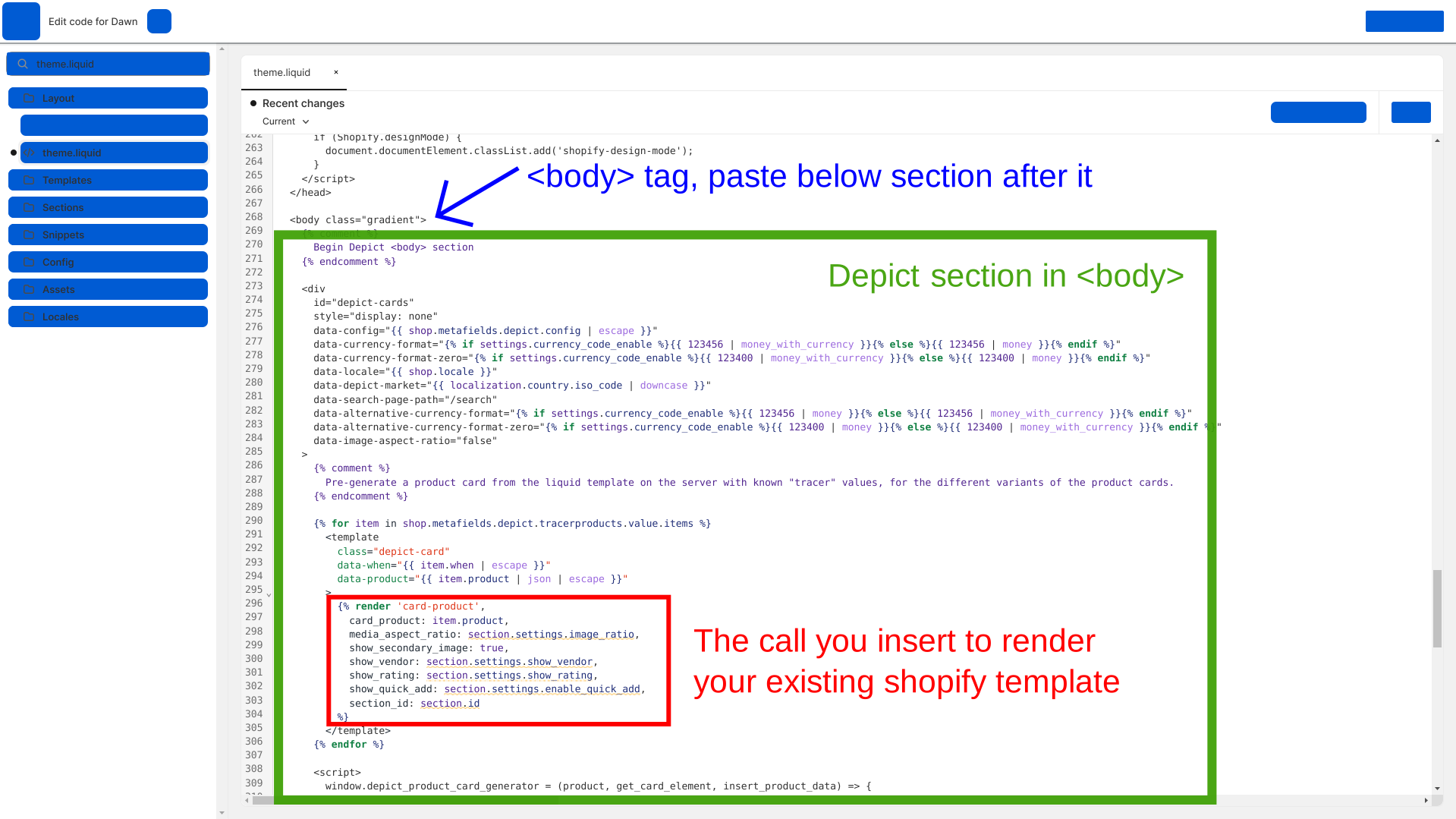
        Insert the following code into theme.liquid as outlined in the screenshot below, inserting the code to call your existing product card rendering snippet. Make sure to pass `item.product` as product to your snippet.

        <Accordion title="Code to insert">
          ```liquid theme={null}
          {% comment %}
          Begin Depict <body> section
          {% endcomment %}

          <div id="depict-cards" style="display: none"
           data-config="{{ shop.metafields.depict.config | escape }}"
           data-currency-format="{% if settings.currency_code_enable %}{{ 123456 | money_with_currency }}{% else %}{{ 123456 | money }}{% endif %}"
           data-currency-format-zero="{% if settings.currency_code_enable %}{{ 123400 | money_with_currency }}{% else %}{{ 123400 | money }}{% endif %}"
           data-locale="{{ shop.locale }}"
           data-depict-market="{{ localization.country.iso_code | downcase }}"
           data-search-page-path="/search"
           data-alternative-currency-format="{% if settings.currency_code_enable %}{{ 123456 | money }}{% else %}{{ 123456 | money_with_currency }}{% endif %}"
           data-alternative-currency-format-zero="{% if settings.currency_code_enable %}{{ 123400 | money }}{% else %}{{ 123400 | money_with_currency }}{% endif %}"
           data-image-aspect-ratio="{{ section.settings.image_ratio  | default: '1' }}"
          >
          {% comment %}
          Pre-generate a product card from the liquid template on the server with known "tracer" values, for the different variants of the product cards.
          {% endcomment %}


          {% for item in shop.metafields.depict.tracerproducts.value.items %}
          <template class="depict-card" data-when="{{ item.when | escape }}" data-product="{{ item.product | json | escape }}">
              {% comment %}
              INSERT YOUR PRODUCT CARD RENDERING CODE HERE
              {% endcomment %}
          </template>
          {% endfor %}

          <script>
              window.depict_product_card_generator = (product, get_card_element, insert_product_data) => {
              // If something doesn't work quite right, this function can be used to fix things up.
              const { card_element, tracer_data } = get_card_element(product);
              insert_product_data(card_element, product, tracer_data);
              return card_element;
          }
          </script>
          </div>
          {% comment %}
          End Depict <body> section
          {% endcomment %}
          ```
        </Accordion>

        <Frame caption={<>Click to enlarge</>}>
          <img
            src="https://cdn.statically.io/gh/depict-org/documentation-images/main/shopify/code-editor-body2.svg"
            alt="How the <body>-section of your theme.liquid should look"
            style={{aspectRatio: 1.7784986098, width: "100%"}}
            ref={element => {
                    // In prod, they have some zoom thing which breaks aspectRatio, work around that. Unfortunately this is not in the SSR'd output so there's still some CLS.
                    const direct_parent = element?.parentElement;
                    if(direct_parent?.matches?.("[data-rmiz-content]")) {
                        Object.assign(direct_parent.style, {
                            width: "100%",
                            display: "flex",
                            justifyContent: "center",
                            alignItems: "center"
                        })
                    }
                    const parents_parent = direct_parent?.parentElement;
                    if(parents_parent?.matches?.("[aria-owns^='rmiz-modal']")) {
                        parents_parent.style.width = "100%";
                    }
                }}
          />
        </Frame>
      </Step>

      <Step title="Third step">
        Proceed with the next steps - inserting the Depict blocks into the page and then check if the product card looks like it should.

        The following might help fix minor issues:

        1. Style issues can be fixed using the style editor in the Depict app configuration.
        2. If your image already is in a container with a fixed aspect ratio, set `data-image-aspect-ratio` in the snippet you pasted to `"false"`, otherwise make sure it's set to the correct aspect ratio
        3. If your hover image doesn't work, add the `depict-secondary-image` class to the `<img>` element. You can also specify what image source should be used for an `<img>` tag by setting a data attribute like this: `<img data-src-key="product.media[1].src" />`
      </Step>
    </Steps>
  </Accordion>

  <Accordion title="Option 2: Implement product card using TSX and Sass in the product card editor">
    <Steps>
      <Step title="First Step">
        Add the following code to your `theme.liquid` file, <b>directly after</b> the `<body>` tag:

        ```tsx theme={null}
        {% comment %}
        Begin Depict <body> section
        {% endcomment %}
        <div id="depict-cards" style="display: none"
             data-config="{{ shop.metafields.depict.config | escape }}"
             data-currency-format="{% if settings.currency_code_enable %}{{ 123456 | money_with_currency }}{% else %}{{ 123456 | money }}{% endif %}"
             data-currency-format-zero="{% if settings.currency_code_enable %}{{ 123400 | money_with_currency }}{% else %}{{ 123400 | money }}{% endif %}"
             data-locale="{{ shop.locale }}"
             data-depict-market="{{ localization.country.iso_code | downcase }}"
             data-search-page-path="/search"
             data-alternative-currency-format="{% if settings.currency_code_enable %}{{ 123456 | money }}{% else %}{{ 123456 | money_with_currency }}{% endif %}"
             data-alternative-currency-format-zero="{% if settings.currency_code_enable %}{{ 123400 | money }}{% else %}{{ 123400 | money_with_currency }}{% endif %}"
             data-image-aspect-ratio="{{ section.settings.image_ratio  | default: '1' }}"
        >
        </div>
        {% comment %}
        End Depict <body> section
        {% endcomment %}
        ```
      </Step>

      <Step title="Second Step">
        Click "Use example template" in the product card editor, then hit "Save"

        <Frame caption="The product card editor before being used">
          <img
            src="https://cdn.statically.io/gh/depict-org/documentation-images/main/shopify/product-card-editor-setup.svg"
            alt=""
            style={{aspectRatio: 1.7150153218, width: "100%"}}
            ref={element => {
                    const is_safari = typeof navigator === "undefined" ? false : /^((?!chrome|android).)*safari/i.test(navigator.userAgent);
                    // Safari can't render this image for some reason
                    if(is_safari && element) {
                        element.src = element.src.replaceAll("product-card-editor-setup.svg", "product-card-editor-setup-png.png");
                    }
                    // In prod, they have some zoom thing which breaks aspectRatio, work around that. Unfortunately this is not in the SSR'd output so there's still some CLS.
                    const direct_parent = element?.parentElement;
                    if(direct_parent?.matches?.("[data-rmiz-content]")) {
                        Object.assign(direct_parent.style, {
                            width: "100%",
                            display: "flex",
                            justifyContent: "center",
                            alignItems: "center"
                        })
                    }
                    const parents_parent = direct_parent?.parentElement;
                    if(parents_parent?.matches?.("[aria-owns^='rmiz-modal']")) {
                        parents_parent.style.width = "100%";
                    }
                }}
          />
        </Frame>
      </Step>

      <Step title="Third Step">
        Adjust the type definitions at the bottom of the default ProductCard to the format of the data you receive from our API (we can help you out with those if you ping us on slack).

        On the left you can now edit the code and styling for the product card. On the right you can preview two states of the product card: the state with data (once loading has completed) and the placeholder state (shown while loading). To make sure that scroll restoration works, make sure your placeholder product card is the same size as your average product card with data. See [this page in the JS-UI guide](/js-ui-guide/setup/product-card) for more details.

        <Frame caption="The product card editor containg a product card">
          <img
            src="https://cdn.statically.io/gh/depict-org/documentation-images/main/shopify/product-card-editor-overview.svg"
            alt=""
            style={{aspectRatio: 1.7157088123, width: "100%"}}
            ref={element => {
                    // In prod, they have some zoom thing which breaks aspectRatio, work around that. Unfortunately this is not in the SSR'd output so there's still some CLS.
                    const direct_parent = element?.parentElement;
                    if(direct_parent?.matches?.("[data-rmiz-content]")) {
                        Object.assign(direct_parent.style, {
                            width: "100%",
                            display: "flex",
                            justifyContent: "center",
                            alignItems: "center"
                        })
                    }
                    const parents_parent = direct_parent?.parentElement;
                    if(parents_parent?.matches?.("[aria-owns^='rmiz-modal']")) {
                        parents_parent.style.width = "100%";
                    }
                }}
          />
        </Frame>
      </Step>
    </Steps>
  </Accordion>
</AccordionGroup>
