> ## Documentation Index
> Fetch the complete documentation index at: https://docs.depict.ai/llms.txt
> Use this file to discover all available pages before exploring further.
# Theme setup: app embeds and blocks
> What Depict adds to your theme through its theme app extension, how to switch each part on, and links that open the theme editor with the part already in place.
[**Depict: Search & Merchandising**](https://apps.shopify.com/depict) never
edits your theme's code by hand. Everything it shows on the storefront comes
from its **theme app extension**: a set of app embeds and an app block you
switch on in the Shopify theme editor, plus one theme section for
recommendations. This page lists each part, what it does, and the exact steps
to add it.
App embeds and app blocks live on the theme, so they follow it: if you
publish a new theme, repeat the steps below on that theme. Nothing changes on
the storefront until you click **Save** in the theme editor.
## What the extension contains
| Part | Type | Where | Needed for | Set up by |
| -------------------------- | ------------- | ---------------------------------------------------- | --------------------------------------------------- | ------------------------ |
| **Depict Brand Features** | App embed | `` of every page | Collection merchandising and content cards | The app, on install |
| **Depict Search Settings** | App embed | `` of every page | Search (the modal's template, layout and behaviour) | You, one click |
| **Depict Search Styling** | App embed | `` of every page | Search, optional (fonts and colours) | You, one click |
| **Depict Search Button** | App block | Your header (or any section that accepts app blocks) | Search (the icon that opens it) | You, one click |
| **Depict Recommendations** | Theme section | Product, cart, home or collection templates | Recommendations | You, via **Add section** |
The setup guides inside the app (on the **Search** and **Recommendations**
pages) have a button for each step that opens the theme editor with that part
already in place, so you only check the preview and save. For search, the
work happens on an unpublished **preview theme** the app creates for you, so
your live theme is untouched until you publish. The steps below are the same
ones, written out with the by-hand route for each.
One editor tab at a time. A deep link stages its change until you click
**Save**; a second editor opened before that starts from the saved theme
and, when saved, undoes the first. Save and close before the next step.
## Depict Brand Features (automatic)
This app embed is switched on for you when the app installs on a theme. It
carries the collection grids, content cards and product-card settings you
configure in the app.
To check it, or switch it back on after it was turned off:
**Shopify admin → Online Store → Themes → Customize** on the theme you
want to check.
In the left panel click the **App embeds** icon (the puzzle piece at the
bottom).
Find **Depict Brand Features** in the list and make sure its toggle is on,
then click **Save**.
A direct link that opens the editor with the embed switched on, ready to save
(replace `YOUR-STORE` with your store's handle):
```
https://admin.shopify.com/store/YOUR-STORE/themes/current/editor?context=apps&activateAppId=5880491310e94364f75b526ce4688a9b/depict_brand_features
```
## Prepare a preview theme for search
Before the embed and the button, the app prepares a copy of your theme so the
Depict search button can replace the theme's built-in search, and creates that
copy as an unpublished preview theme. This is the first theme step of the
Search setup guide in the app.
In the app, go to **Search** and click **Enable search** in the setup
guide. Depict reads your live theme and prepares the header for the
search button in a copy; the live theme is never touched. This usually
takes a few minutes and can take up to 20; you can leave the page.
When the guide says your theme is prepared, click **Create preview
theme**. Depict duplicates your live theme with the prepared files into
an unpublished theme, usually within a few minutes.
The next two steps open the theme editor on that preview theme. You
publish it from **Online Store → Themes** when it looks right; until
then shoppers see your live theme as before.
If your theme changes after preparation, the guide shows **Re-prepare
now**. If your store already runs Depict search through the separate
Search by Depict app, the guide offers **Contact us** instead, and we move
it over for you.
## Depict Search Settings and Depict Search Styling
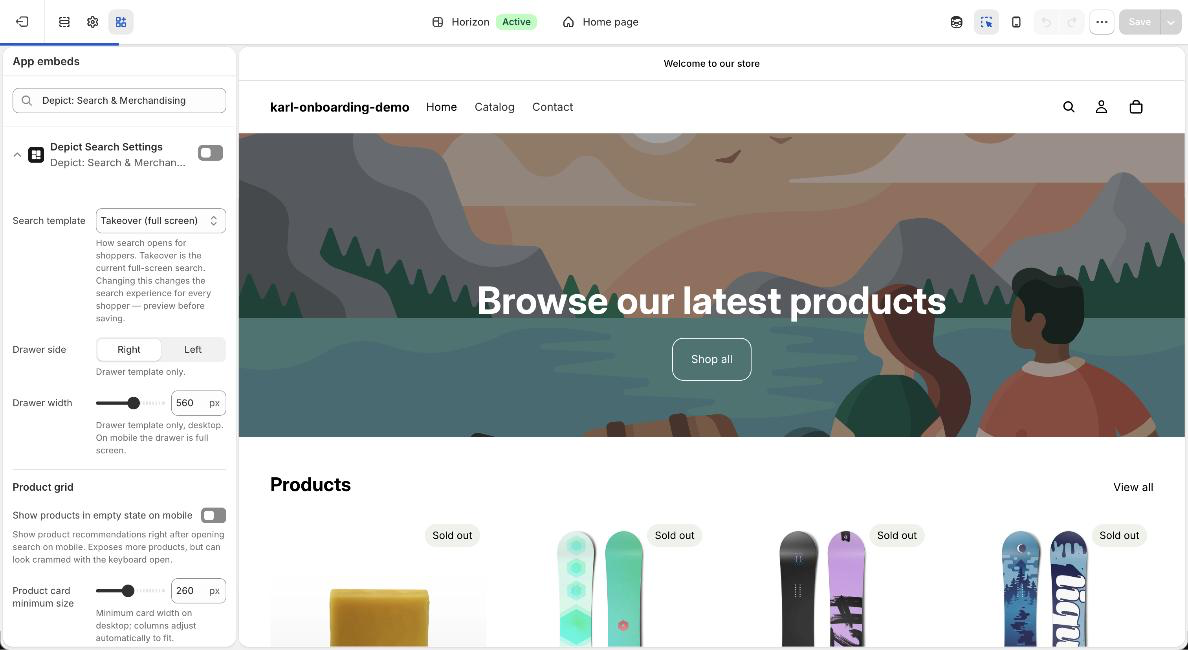
Search needs the **Depict Search Settings** app embed switched on: it holds
the search template (Takeover, Drawer or Quick panel, chosen on the app's
**Search** page), the layout of the results and the behaviour of the search
modal. **Depict Search Styling** is optional and controls fonts and colours.
These are the same four steps the app's Search setup guide shows under
**Switch on the app embed**.
In the app, go to **Search** and click **Switch on the app embed**. The
theme editor opens on your preview theme with **Depict Search Settings**
switched on under **App embeds**.
By hand: **Online Store → Themes**, **Customize** on the preview theme,
click the **App embeds** icon in the left panel, and switch on
**Depict Search Settings**.
In the same **App embeds** list, switch on **Depict Search Styling** to
match the search modal to your theme's fonts and colours.
Click **Save** in the top right, then close the tab. Save before the next
step: its button opens a fresh editor from the saved theme, so an unsaved
embed would be lost.
The guide moves on to the search button.
 Direct links (replace `YOUR-STORE`):
```
https://admin.shopify.com/store/YOUR-STORE/themes/current/editor?context=apps&activateAppId=5880491310e94364f75b526ce4688a9b/depict_gpt_search_settings
https://admin.shopify.com/store/YOUR-STORE/themes/current/editor?context=apps&activateAppId=5880491310e94364f75b526ce4688a9b/depict_gpt_search_styling
```
The settings of both embeds (except the image pickers, which stay in the
theme editor) can also be changed from the app's **Search → Display** page,
which writes to the same embeds. See
[Search customization](/shopify-search/blocks/search-customization-overview)
for what each setting does.
## Depict Search Button
The app block that shoppers click to open search. It belongs in your header,
in the place of the theme's own search icon. The app's Search setup guide
offers this step once the embed step above is ticked, so the two editor
sessions never overlap.
In the app, click **Add the button to the header**. The theme editor
opens your preview theme's home page with the **Depict Search Button**
added to the header under **Apps**.
By hand: open the theme editor on the preview theme, select the
**Header** section in the left panel, click **Add block** and choose
**Depict Search Button** under **Apps**.
Drag the block to where the search icon should sit, usually next to the
cart icon. If the header still shows its built-in search icon, switch it
off in the header section's settings, so shoppers see one search. The
block's settings let you match the icon's size and colour to your theme,
or add a text label.
Click **Save**.
In the app, click **Preview the store**: the preview theme opens on your
storefront. Check desktop and mobile and click the icon; the Depict
search opens. When it looks right, publish the preview theme from
**Online Store → Themes**.
The guide moves on to choosing a template.
Direct link (replace `YOUR-STORE`; `current` is the live theme, a theme id
targets a preview theme):
```
https://admin.shopify.com/store/YOUR-STORE/themes/current/editor?template=index&addAppBlockId=5880491310e94364f75b526ce4688a9b/depict_gpt_search_button&target=sectionGroup:header
```
**Depict Search Button is not offered under Add block?** The header section
of your theme does not accept app blocks (common in older or heavily
customised themes). The Search setup guide in the app includes a prompt you
can hand to your developer or an AI assistant together with a duplicate of
your theme; it makes the header accept app blocks and places the button.
Or [contact us](mailto:hello@depict.ai) with the theme's name.
The block's settings are listed under
[Search button settings](/shopify-search/blocks/search-button-settings).
## Depict Recommendations (theme section)
Recommendations are rendered by a theme section the app installs on your
theme, not by an app block, so it is added with **Add section** rather than
**Add block**. The steps, the section's settings and its troubleshooting are on
the [Recommendations](/shopify-lite/recommendations#adding-the-section-to-your-theme)
page. The app's **Recommendations** page has the same steps in its setup guide,
with a button that opens the theme editor on the product template.
## Checking what is on a theme
The app shows, per theme, whether Depict's collection template is installed
(see [Onboarding](/shopify-lite/onboarding)). For the app embeds and the
search button, the theme editor's **App embeds** panel and the header section
are the source of truth. On an unpublished theme, the parts you add go live
when you publish that theme.
## Removing a part
Switch an app embed off under **App embeds**, or remove the app block from its
section, and click **Save**. Uninstalling the app removes its app embeds and
blocks from your themes; the collection template the app installed is restored
when a collection is deactivated, so your theme is never left in a broken
state.
Direct links (replace `YOUR-STORE`):
```
https://admin.shopify.com/store/YOUR-STORE/themes/current/editor?context=apps&activateAppId=5880491310e94364f75b526ce4688a9b/depict_gpt_search_settings
https://admin.shopify.com/store/YOUR-STORE/themes/current/editor?context=apps&activateAppId=5880491310e94364f75b526ce4688a9b/depict_gpt_search_styling
```
The settings of both embeds (except the image pickers, which stay in the
theme editor) can also be changed from the app's **Search → Display** page,
which writes to the same embeds. See
[Search customization](/shopify-search/blocks/search-customization-overview)
for what each setting does.
## Depict Search Button
The app block that shoppers click to open search. It belongs in your header,
in the place of the theme's own search icon. The app's Search setup guide
offers this step once the embed step above is ticked, so the two editor
sessions never overlap.
In the app, click **Add the button to the header**. The theme editor
opens your preview theme's home page with the **Depict Search Button**
added to the header under **Apps**.
By hand: open the theme editor on the preview theme, select the
**Header** section in the left panel, click **Add block** and choose
**Depict Search Button** under **Apps**.
Drag the block to where the search icon should sit, usually next to the
cart icon. If the header still shows its built-in search icon, switch it
off in the header section's settings, so shoppers see one search. The
block's settings let you match the icon's size and colour to your theme,
or add a text label.
Click **Save**.
In the app, click **Preview the store**: the preview theme opens on your
storefront. Check desktop and mobile and click the icon; the Depict
search opens. When it looks right, publish the preview theme from
**Online Store → Themes**.
The guide moves on to choosing a template.
Direct link (replace `YOUR-STORE`; `current` is the live theme, a theme id
targets a preview theme):
```
https://admin.shopify.com/store/YOUR-STORE/themes/current/editor?template=index&addAppBlockId=5880491310e94364f75b526ce4688a9b/depict_gpt_search_button&target=sectionGroup:header
```
**Depict Search Button is not offered under Add block?** The header section
of your theme does not accept app blocks (common in older or heavily
customised themes). The Search setup guide in the app includes a prompt you
can hand to your developer or an AI assistant together with a duplicate of
your theme; it makes the header accept app blocks and places the button.
Or [contact us](mailto:hello@depict.ai) with the theme's name.
The block's settings are listed under
[Search button settings](/shopify-search/blocks/search-button-settings).
## Depict Recommendations (theme section)
Recommendations are rendered by a theme section the app installs on your
theme, not by an app block, so it is added with **Add section** rather than
**Add block**. The steps, the section's settings and its troubleshooting are on
the [Recommendations](/shopify-lite/recommendations#adding-the-section-to-your-theme)
page. The app's **Recommendations** page has the same steps in its setup guide,
with a button that opens the theme editor on the product template.
## Checking what is on a theme
The app shows, per theme, whether Depict's collection template is installed
(see [Onboarding](/shopify-lite/onboarding)). For the app embeds and the
search button, the theme editor's **App embeds** panel and the header section
are the source of truth. On an unpublished theme, the parts you add go live
when you publish that theme.
## Removing a part
Switch an app embed off under **App embeds**, or remove the app block from its
section, and click **Save**. Uninstalling the app removes its app embeds and
blocks from your themes; the collection template the app installed is restored
when a collection is deactivated, so your theme is never left in a broken
state.