

A) App embeds (global search experience)
These control the whole search modal, regardless of how many search buttons you have.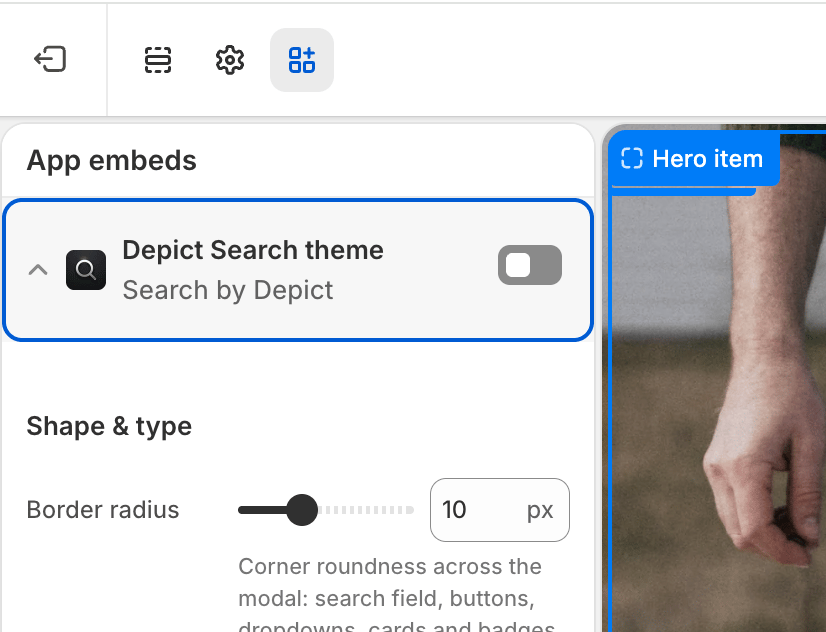
Open App embeds
In the theme editor, click the App embeds icon in the left sidebar (the puzzle-piece / toggle icon near the bottom).
Expand the relevant embed
- Depict Search layout → layout & behaviour of the search modal. See Search modal — Layout & behaviour.
- Depict Search theme → visual theming of the search modal. See Search modal — Theming.
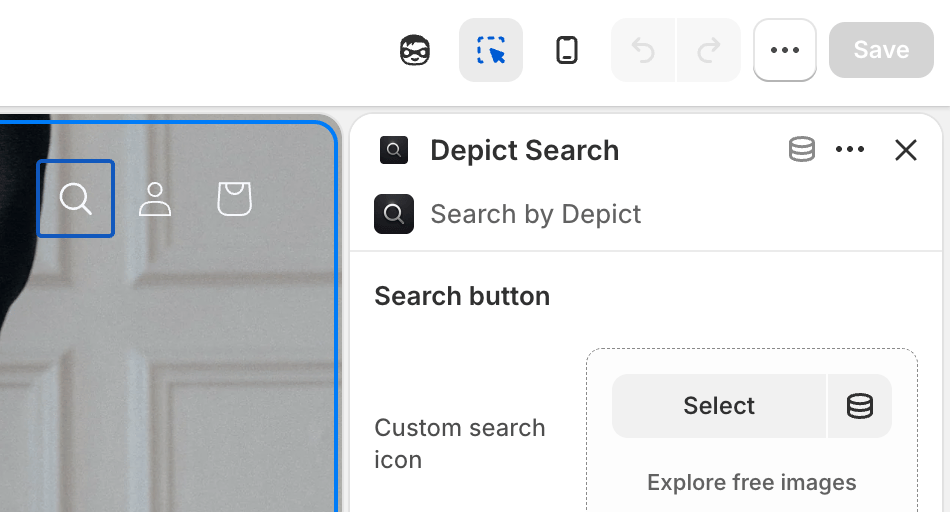
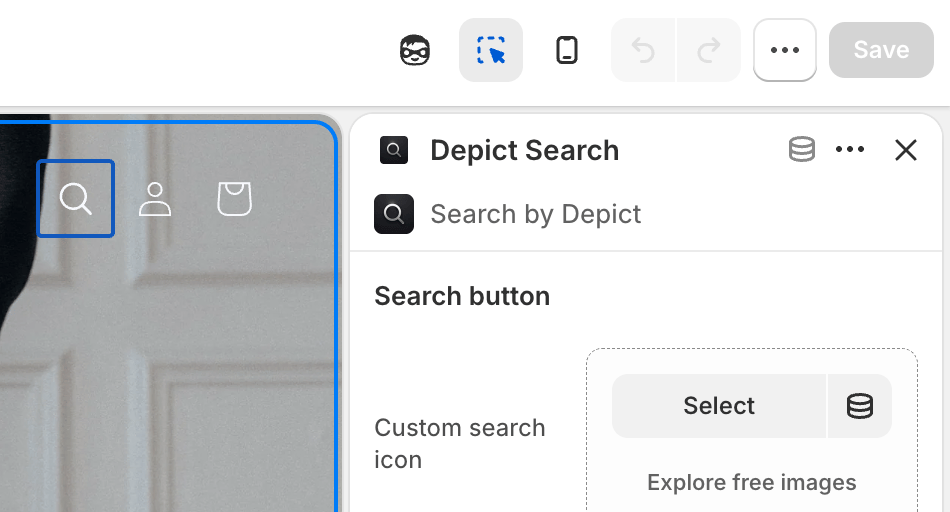
B) Search button block (the on-page button)
This controls only the button that opens search. See Search button settings.Navigate to the button
In the theme editor, navigate to the page/section where the search button is placed (commonly the Header).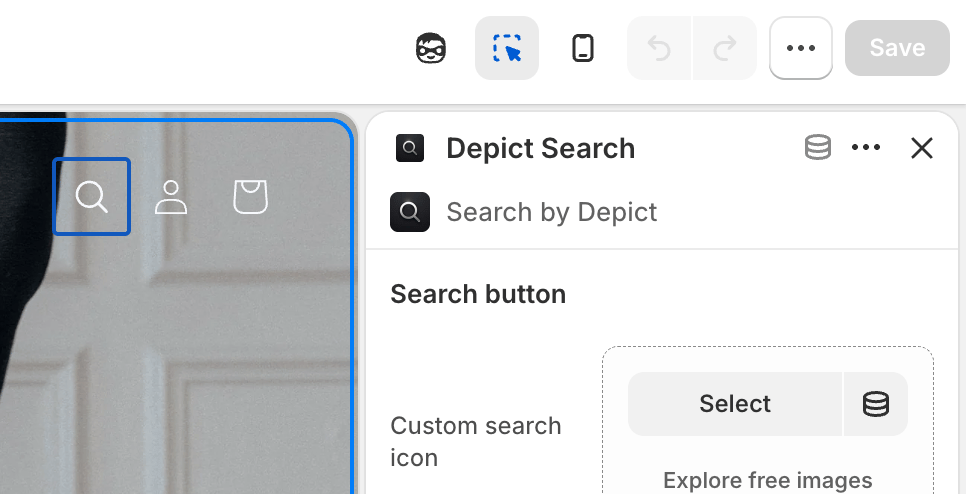
The search modal is a single, global UI. Its experience (grid, cards, theming, logo, mobile layout) is configured once in the app embeds — not per button — so the configuration is unambiguous no matter how many search buttons you place. The Search button block only styles the button itself.
How settings are organized
Each settings page uses an Applies to column to indicate whether a setting affects the desktop view, the mobile view, or both.Search button
Styling for the button that opens the search modal.
Modal — Layout & behaviour
Grid, product card, mobile layout, suggestions and header logo.
Modal — Theming
Shape, typography, colors, dark mode and custom CSS.