

Limits and behavior
- Depict is turned on per collection. Deactivating a collection restores its original template.
- How many collections can be active at once depends on the plan; the free tier allows 3 after the 7-day trial.
- Publishing writes the computed order into the Shopify collection as a manual sort order — it applies in your theme and every sales channel, and can take a short moment to be fully visible.
- Scheduled publishes are executed by a job that runs every 30 minutes: a version goes live within about 30 minutes of its scheduled time.
- Content cards and product duplicates are shown only in the collection’s default order; they are hidden when a shopper sorts or filters (why). Image settings apply in every view.
- Sell-through is computed for the all-markets view only; market-scoped views don’t show it.
- The grid renders with the store’s configured column counts (defaults: 4 on desktop, 2 on mobile).
Activating collections
1
Open Collections
The Collections page lists every collection with filter tabs
(All / Live / Not live / Draft / Scheduled), search, and sorting by
performance or name.
2
Activate a collection
Activate the collection you want Depict to manage. It receives the
Depict template and opens in the merchandising editor.
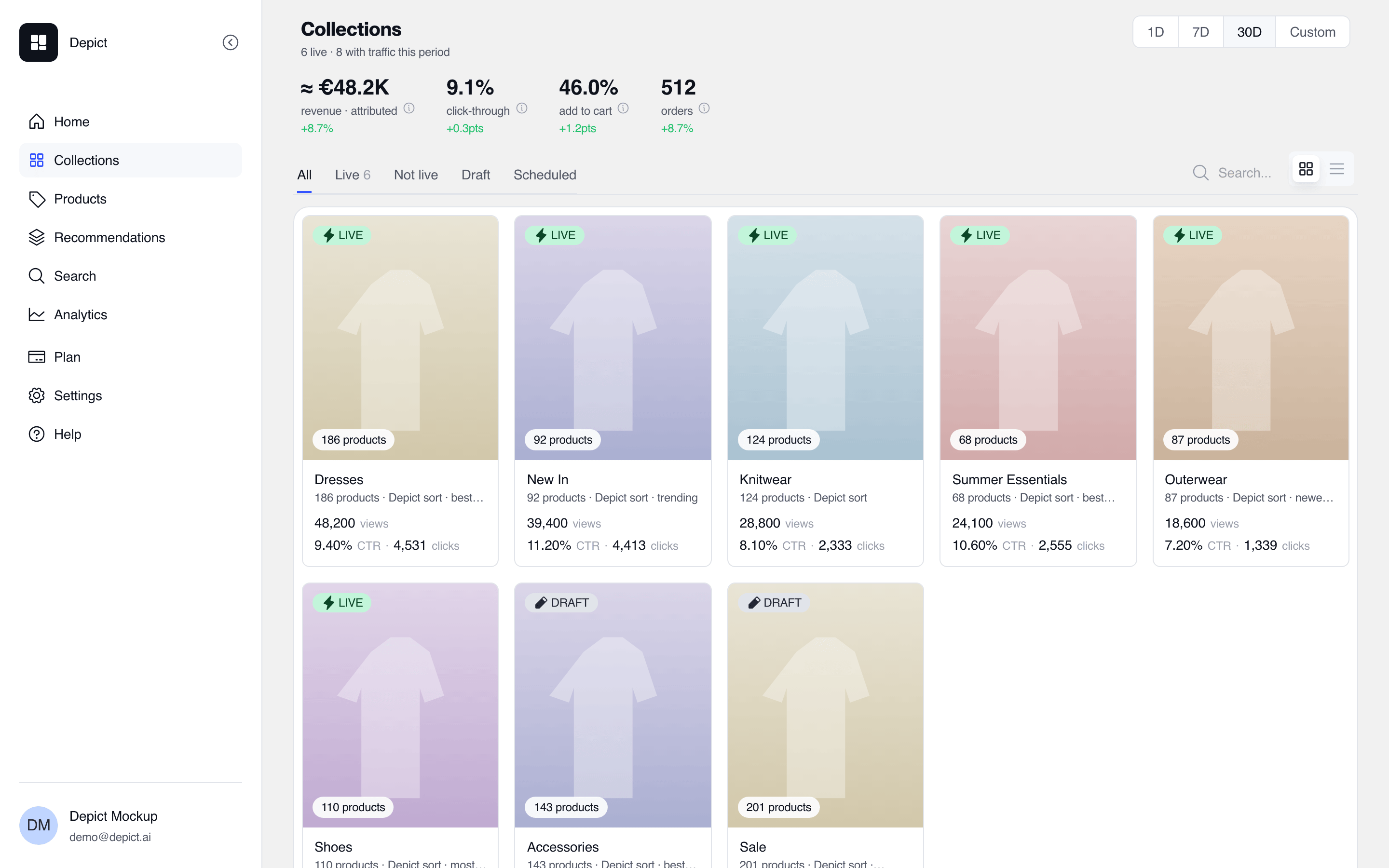
The Collections page: filter tabs, search, period picker, and live/draft badges per collection.
Sorting
Each active collection has a sort order:
A collection can also show Most relevant. That comes from Shopify’s own
relevance sort, which Depict can’t compute, so it isn’t offered as a sort
order. Depict keeps the collection’s existing order, and pins and Boost & Bury
rules still apply on top. Once Depict has written the order to Shopify, the
existing order is the one Depict last wrote, so it no longer follows Shopify’s
relevance. Pick one of the sort orders above to have Depict keep the
collection sorted.
On top of the sort order:
- Pinning fixes products to positions (Pin to top and Pin to position in the editor); everything unpinned follows the sort order.
- Unpin out-of-stock releases a pin automatically when the product goes out of stock.
- Storefront settings per collection include hiding out-of-stock products.
- Boost & Bury rules come before the sort order: products matching a higher rule are placed above products matching a lower one, and the sort order decides among products under the same rule.
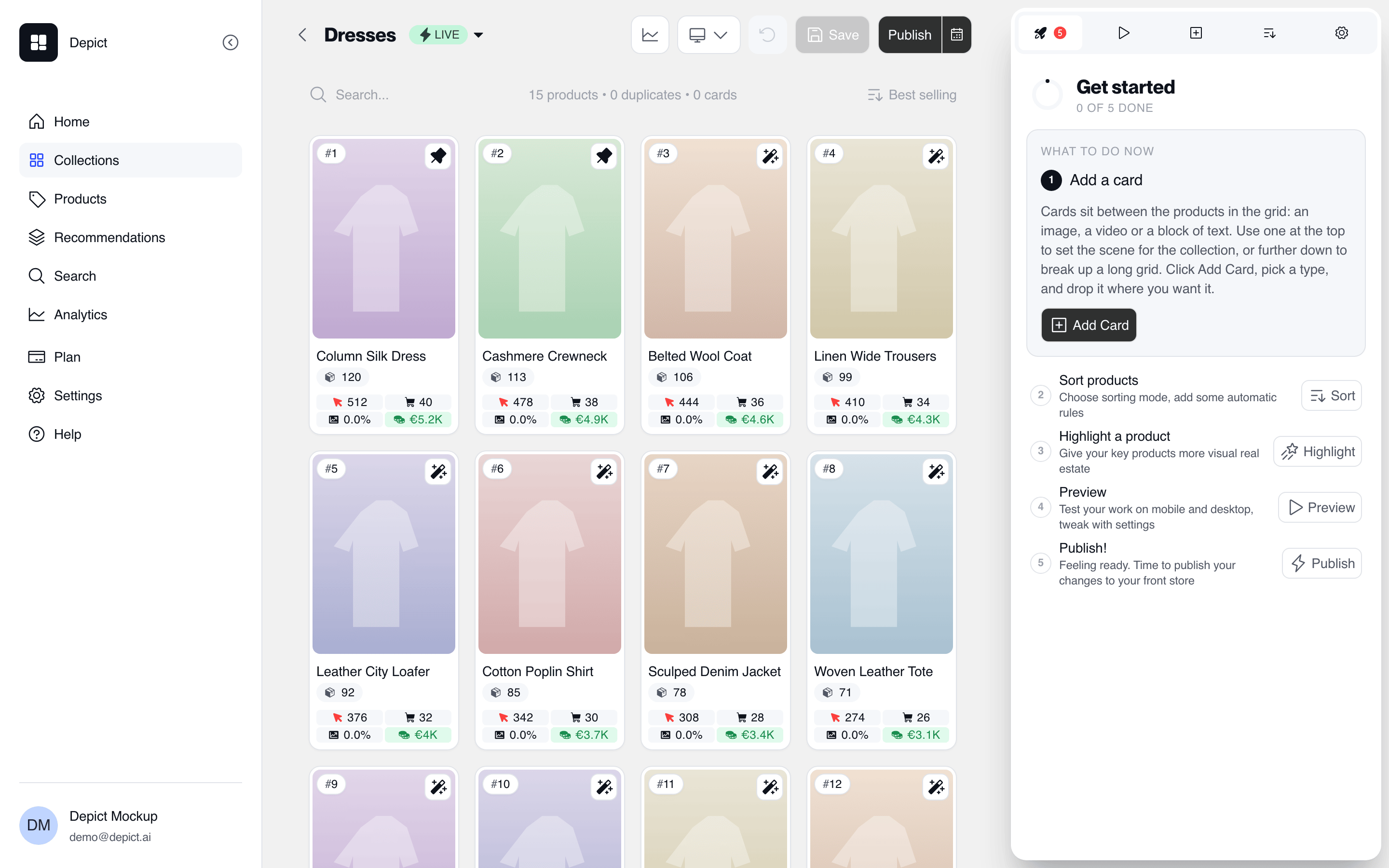
The collection editor: the drag-and-drop grid with pinned products in the first slots, per-product metrics, and the Get Started drawer.
Versions, publishing and scheduling
Merchandising is saved as versions of the collection:- A version is a draft until published — it changes nothing on the storefront.
- Publishing a version as the main version makes it the live configuration for every market that has no market version.
- A market version targets a Shopify market or a market group, and takes precedence over the main version for those markets.
- A version can be scheduled for a future time, and unscheduled before it fires. Scheduled publishes go live within about 30 minutes of the scheduled time.
Content cards
Content cards are tiles placed in the collection grid alongside products:- Types: image, video, text, and spacer cards. Video cards play muted and looping. Text can be overlaid on image and video cards.
- Size: a card spans one or more grid slots (columns × rows). Cards larger than one slot affect the grid’s slot math — see empty spaces in the grid.
- Visibility: a card can be limited to desktop or mobile with its visibility setting.
- Links: a card can link to a product, a collection, a page, a blog article, or an external URL.
- Instagram: media can be imported from a connected Instagram account; imported cards carry an attribution to the creator.
- Analytics: card clicks are tracked per card.
- Translation: a card’s text is translated through Shopify’s native translations; other fields, including alt text, are identical across locales.
- Cards appear in the collection’s default order only; a shopper who sorts or filters sees the grid without cards.
Image settings
An image setting replaces a product’s primary image (and optionally its hover image) within one collection, without affecting the product anywhere else. Image settings apply in every view, including when shoppers sort or filter. They are not applied to product duplicates.Product duplicates
A product duplicate is a second card for a product already in the collection, with its own imagery — the title, price and link stay the product’s own. Duplicates are placed like products in the grid, and like content cards they are hidden when a shopper sorts or filters.Collection analytics
- The Collections page sorts by performance over a chosen date range (views, CTR, clicks), with headline numbers per collection.
- Per collection, the app shows product clicks with each product’s average position, product orders, and revenue — filterable by market or market group. Sell-through appears in the all-markets view.
- Any collection can be previewed as a rendered storefront screenshot; this works on password-protected storefronts once the storefront password is entered in the app.