

Before you start
Recommendations has to be enabled for your store by the Depict team — contact us to get set up. Enabling seeds your first surfaces and starts the first computation. Behavior that applies to every surface:- Recommendations only ever include in-stock products.
- Results are precomputed per surface and market; a combination without a computed result renders nothing rather than falling back.
- On product pages, the anchor product is never included in its own recommendations.
- Recommendations are recomputed on a schedule per market, and after a surface is saved.
Surfaces
A surface is a named recipe for what to recommend: an ordered cascade of steps, where each step contributes products until the surface is full. A new setup starts with four: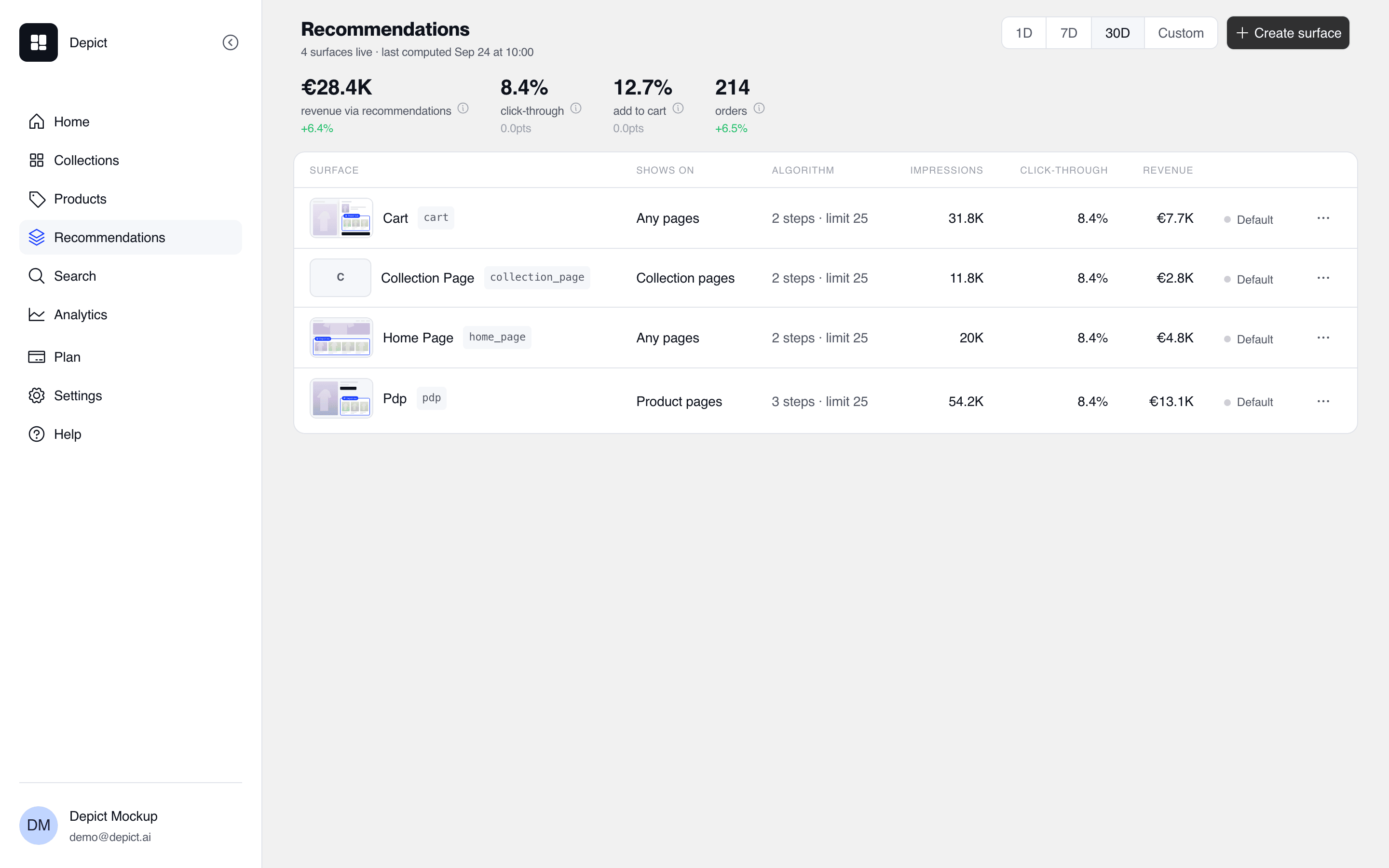
The Recommendations page: metrics for the period and the surfaces list.
cart and home_page work
anywhere.
A surface also has a limit — the maximum number of products it computes
(25 by default). The theme section’s “Max products to show” can never exceed
it: a section set to 48 on a surface with limit 25 shows at most 25.
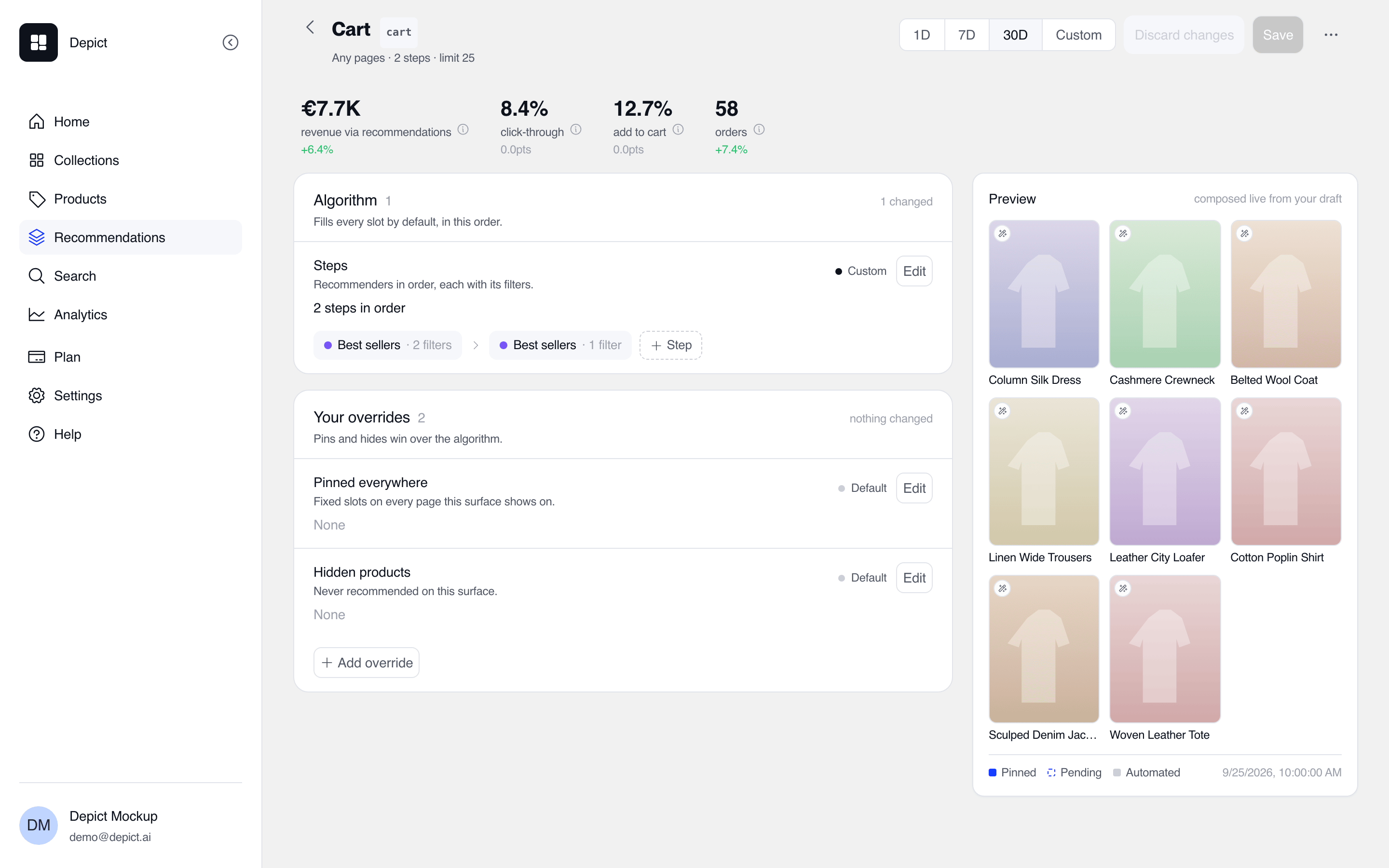
The surface editor: the ordered steps of the cart surface, with filters per step.
Pinned products
A surface can carry pinned products: a pin fixes a product to a slot on every page the surface serves, and the algorithm fills the remaining slots.- Pin positions are slot numbers — pinning to slots 1 and 5 leaves slots 2–4 to the algorithm.
- Up to 100 products can be pinned per set.
- On product-anchored surfaces, pins can be set per anchor product; changing a surface’s context removes its product-specific pin sets (the editor warns before saving).
Filters
Every step in a surface can carry filters. A filter narrows what that step is allowed to contribute — it never adds products, and it only affects its own step: the other steps of the surface still pick freely, and the same step on another surface is untouched. To filter a whole surface, add the filter to every step of that surface; to filter every carousel in your store, do that on every surface. Open a surface, click a step to expand it, and pick a filter type under Filters:
Each step can carry at most one filter of each type. Remove a filter with its
trash icon to stop filtering.
The sale filter
Adding the On sale filter to a step shows a single checkbox. Ticked (the default), it reads Only products currently on sale and the step recommends sale items only. Unticked, it reads Only products not currently on sale and the step recommends full-price items only — useful when you’d rather keep discounted products out of a carousel.1
Open the surface
In the Depict app go to Recommendations and click the surface you want
to change, for example
cart.2
Expand the step
Click a step to expand it. The collapsed row shows a summary such as “No
filters” or “1 filter”.
3
Add the filter
Under Filters, click On sale. The filter is added with Only
products currently on sale ticked.
4
Pick the direction
Leave the box ticked to recommend only sale items, or untick it to
recommend only full-price items.
5
Repeat where you want it
Filters are per step and per surface. Add the filter to each step of the
surface — and to each surface — where you want it to apply.
6
Save
Click Save. Saving starts a recomputation of the surface; the change
reaches the storefront when it finishes, typically within a few minutes.
cart surface’s first
step combines it with a price filter to suggest inexpensive sale items as
add-ons.
Filters narrow, they don’t guarantee. If only a handful of products are on
sale, a sale-filtered step contributes only those, and the surface fills the
rest from its later steps — recommendations are also always limited to
in-stock products, sale or not. Filtering by product type, tags or other
product attributes isn’t possible yet.
Adding the section to your theme
The example below puts “You may also like” on the product page. The same steps work for the cart, home and collection pages; pick the matching template and surface.1
Open the theme editor
In Shopify admin go to Online Store → Themes and click Customize
on the theme you want to change.
2
Choose the template
In the template selector at the top of the editor, choose Products →
Default product.
3
Add the section
In the left sidebar click Add section where you want the
recommendations to appear, usually below the product information, and pick
Depict Recommendations.
4
Pick the surface
In the section settings, set Recommendation surface to
pdp.5
Set the heading and layout
Type a Heading such as “You may also like”, or leave it blank for no
heading, then adjust the layout settings below.
6
Position and save
Drag the section to where you want it on the page and click Save. On an
unpublished theme the section goes live when you publish that theme.
home_page, Cart
with cart, and Collections → Default collection with collection_page.
Section settings
The cards reuse your theme’s own product card wherever possible, so fonts,
badges and prices match the rest of the store. Anything beyond that can be
adjusted with custom CSS: see
Styling recommendations with custom CSS.
Troubleshooting
”Depict Recommendations” is missing from the Add section list
The Depict app has not installed its files on that particular theme yet, which happens on a fresh duplicate of a theme. Contact us with the name of the theme you are editing and we will set it up.The section shows no products
In the theme editor an empty section shows a grey placeholder with the reason: either no surface is picked, or the surface returned nothing for this page. On the live storefront the section is hidden completely, so shoppers never see an empty block. Three common causes:- The surface doesn’t fit the page. A product-anchored surface such as
pdphas nothing to work from outside a product page. Usehome_pagefor the home page andcollection_pagefor collection pages. - The first computation hasn’t finished. Right after enabling recommendations, give it some time and reload the editor.
- Filters leave too few products. A step filtered to only sale items has nothing to contribute when nothing is on sale in that market. Loosen or remove the filter, or make sure a later step without it can fill the surface.
Recommendations are recomputed for each of your markets on a schedule, so you
don’t need to refresh anything when your catalog changes.