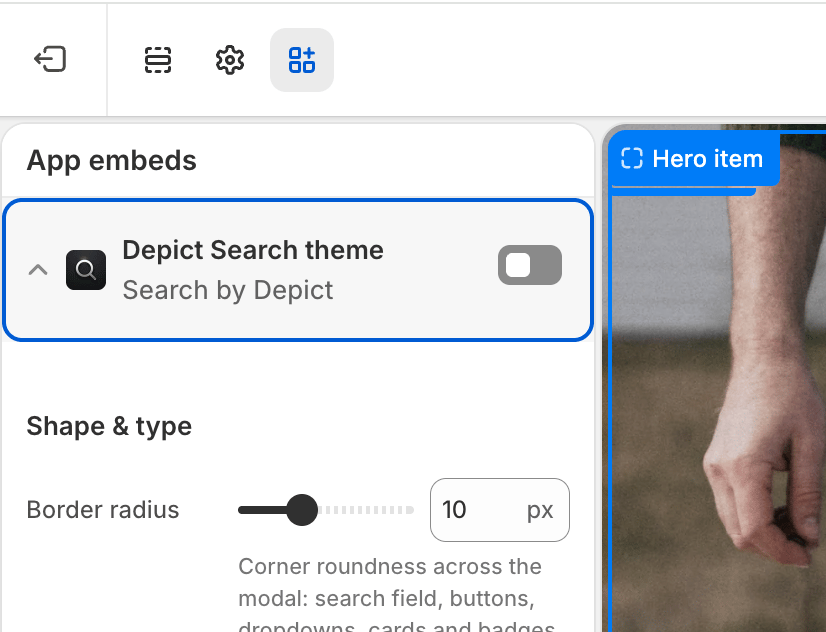
Global visual styling for the Depict search modal (app embed: Depict Search theme).
Search by Depict is being folded into Depict: Search & Merchandising. If your store runs Search by Depict today, nothing changes for you: the app, its search modal and the settings on this page keep working. New stores get search from Depict: Search & Merchandising, where the same settings live under slightly different embed names. We will contact you before your store moves.
See Search customization overview for a full walkthrough of where these settings live.To edit these settings: Shopify admin → Online Store → Themes → Customize → App embeds, then expand Depict Search theme.Global visual styling of the search modal. The baseline stylesheet has sensible defaults, so the modal still renders correctly if this embed is disabled. Every setting below defaults to the look the modal had before the setting existed, so a store that never touches them sees no change.
Corner roundness used across the modal: the search field, the filter / sort / grid-layout / “view all” buttons and their dropdowns, the product cards, and the in-card badges (kept slightly rounder than the card). Set to 0 for fully square corners everywhere.
0–30 px (step 1) · default 10px
Desktop & Mobile
Base font size
Base font size for the whole modal. Every other text (headings, labels, results) scales relative to this. An absolute unit (px) stays fixed; a relative unit (em / %) scales with your store’s base font size. Leave empty to inherit your store’s font size.
CSS font size (optional)
Desktop & Mobile
Modal font family
Depict: Search & Merchandising only. Font for the modal’s own text and controls, for example Arial, sans-serif. Product cards keep their own card font setting. Leave empty to use your store’s font.
Font family (optional)
Desktop & Mobile
Show feedback buttons
Depict: Search & Merchandising only. Show thumbs up / thumbs down buttons under the search results, so shoppers can rate a result set.
On / Off · default On
Desktop & Mobile
Match store typography
By default the search field, the suggestions and the chips never drop below 16px, whatever the base font size. Turn this on to let them follow your store’s font size exactly on desktop. On mobile they keep the 16px minimum, which stops phones from zooming in when the field is focused. Small labels keep their accessibility minimums either way.
On / Off · default Off
Desktop (mobile keeps 16px)
Section heading style
How the headings above the suggested searches and the top picks are set: small uppercase labels with letter-spacing, or sentence case in the body size.
The shape of the search field. Boxed draws a frame around it, filled, with the global border radius. Underline is a single rule under the text, no fill, no radius; the rule darkens while typing. Bare shows only the icon and the text; the icon darkens while typing.
Boxed, Underline, Bare · default Boxed
Desktop & Mobile
Surface style
Elevated keeps the soft shadows and glass effects on the field, the filter and sort buttons and the dropdowns. Flat removes them and leaves hairline borders.
Elevated, Flat · default Elevated
Desktop & Mobile
Loading indicator
What moves while results load. Gradient around the field runs a light sweep along the field’s frame and blurs the previous results. Thin line under the field draws a 2px line after a short delay and dims the previous results. Quiet only dims the previous results. Underline and bare fields have no frame, so they use the thin line in place of the gradient.
Gradient around the field, Thin line under the field, Quiet · default Gradient around the field
Background of the search modal, its dropdowns, sticky bars and filter panel. Used in light and dark theme alike, so pick a dark colour if dark theme is on. Leave empty for the default.
Color (optional)
Desktop & Mobile
Search field colour
Background of the search field, also while typing. Used in light and dark theme alike. Leave empty for the default.
Color (optional)
Desktop & Mobile
Custom CSS
Free-form CSS injected globally into the modal, for anything the settings above do not cover.
CSS (optional)
Desktop & Mobile
A storefront with small type and no shadows, such as a fashion theme set in 14px Helvetica: turn on Match store typography, set Surface style to Flat or Search field style to Underline, set Loading indicator to Thin line, and Section heading style to Sentence case. The heading text itself (“Our Top Picks”) is set in the layout embed.